
interior design showroom display software
Interior Design Showroom Display Software for Studio Screens
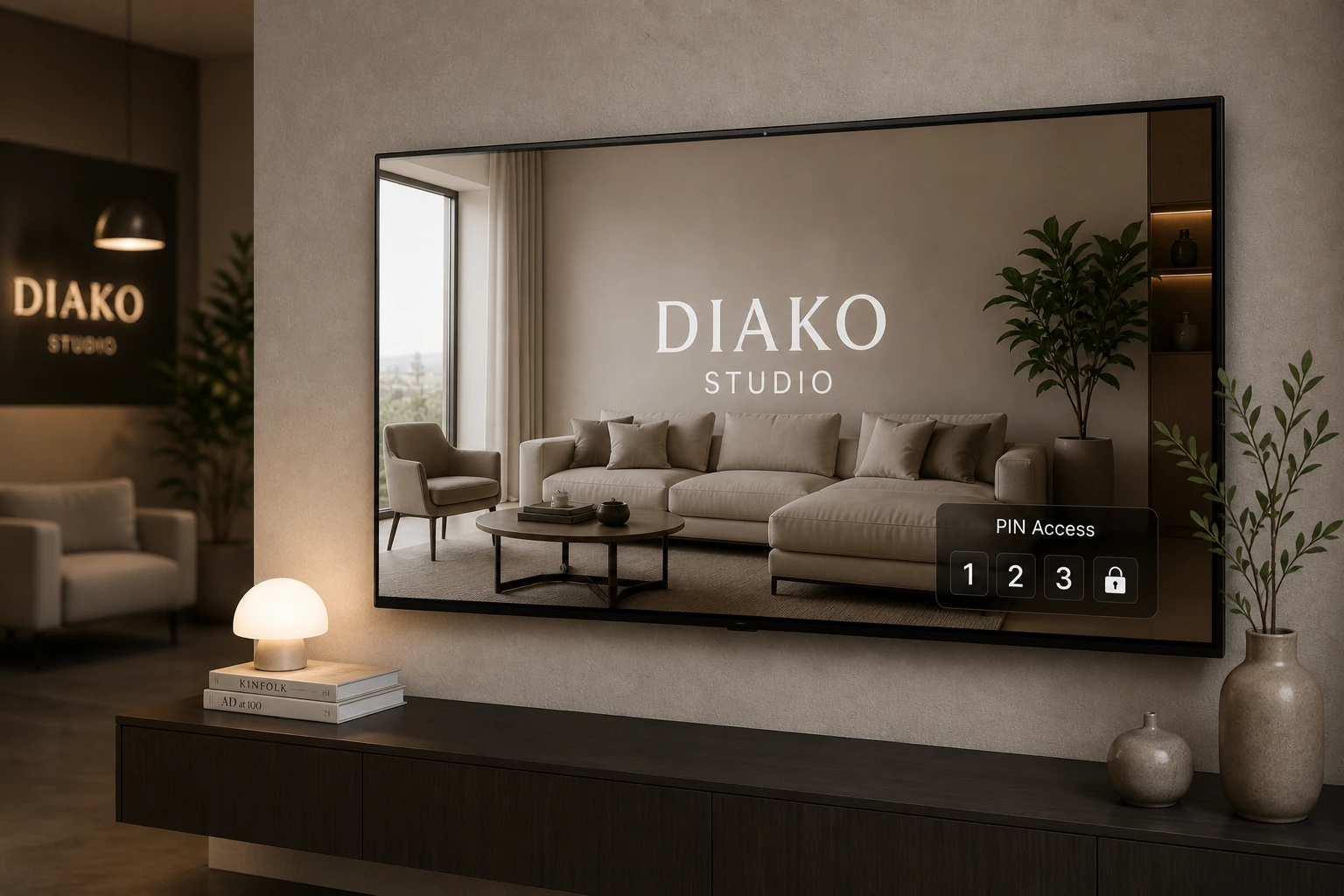
Diako Studio includes a fullscreen media slideshow system for office TVs, reception screens, and showroom displays. Admins create named displays inside the platform, upload images and audio, manage slideshow and music playlists, and publish a clean public-facing screen with no admin UI. PIN protection, admin confirmation codes, automatic refresh, and confirmed-content snapshots keep live screens polished and controlled.
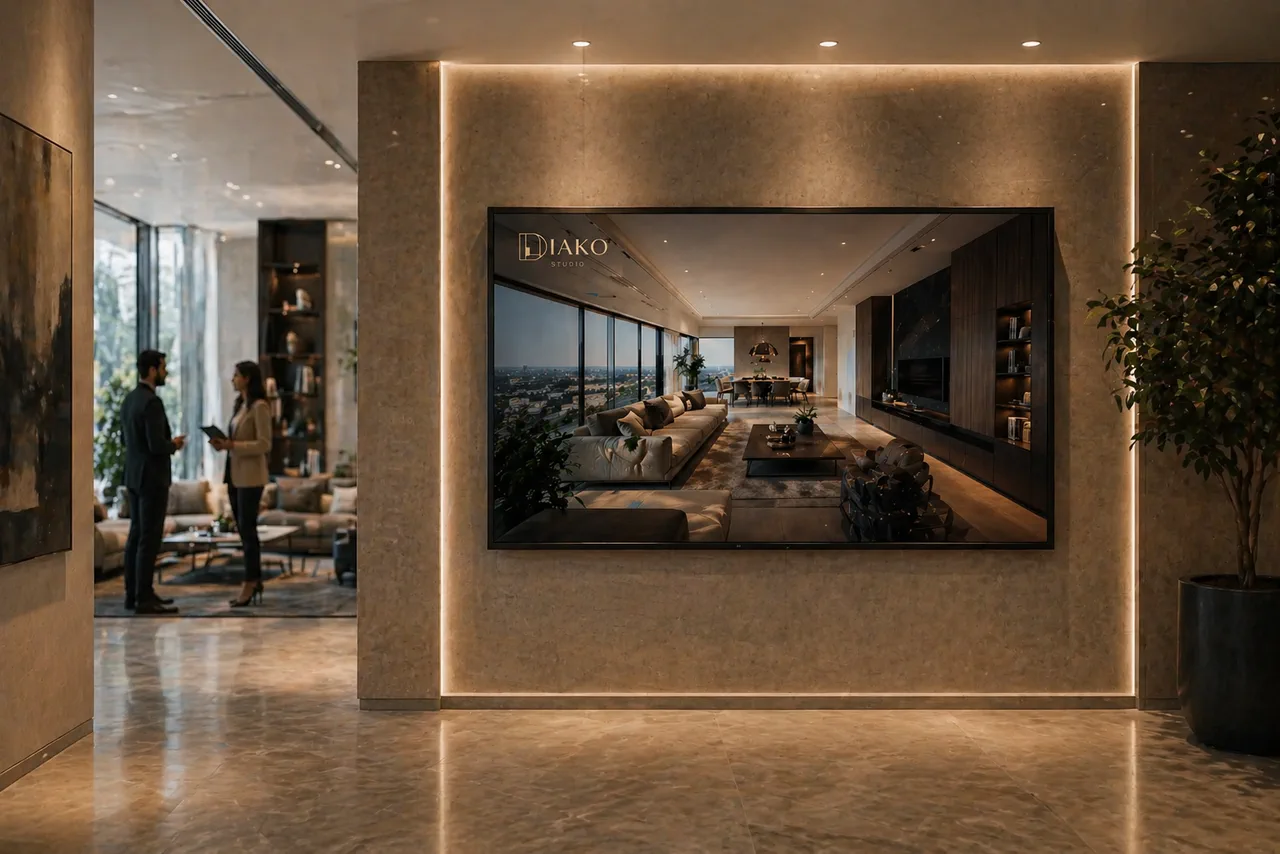
- Fullscreen playbackRun a clean TV-ready display page with slides, background music, transitions, and no visible admin interface.
- PIN and confirmation controlsProtect access with an optional 4-digit PIN and keep new media off live screens until admins confirm it.
- 30-second auto-refreshConnected screens poll for confirmed updates every 30 seconds and refresh automatically without manual intervention.
Showroom Displays for professional studio workflow
- Create one or more named displays, each with its own public link, playback settings, and active or inactive state.
- Manage a display-specific slideshow playlist and a separate looping music playlist from the same admin flow.
- Protect public screens with an optional 4-digit PIN gate before the display content appears.
- Require a 6-digit admin email confirmation code before newly uploaded media can go live.
- Keep TVs stable by serving the last confirmed content snapshot until new media is approved.
Built to support connected studio handoffs
- Create a named display and configure autoplay, loop, shuffle, transitions, image fit mode, speed, and background color.
- Upload display media, then organize slideshow and music playlists independently for the exact playback order you want.
- Open the public display link on a TV, reception monitor, or showroom screen and optionally require a 4-digit PIN before playback starts.
- When new images or audio are added, confirm the update with the 6-digit admin email code before the new media is published.
- Connected screens poll for updates every 30 seconds and switch to newly confirmed content automatically without manual reloads.
Inside the display workflow
How the showroom display workflow actually works
The showroom module is not just a static image rotator. It gives the studio a managed display workflow with named screens, image and audio playlists, fullscreen public playback, approval controls, and snapshot-based publishing safety.
Create dedicated screens with their own links, playback behavior, and access control
Each display is a separately managed screen. Studios can name it, decide whether it is active, choose how slides appear, control looping and shuffle behavior, set transition speed, and decide whether a public PIN gate should appear before playback begins. That makes it practical to run different screens for a reception desk, showroom wall, or office TV without mixing their settings together.
- Create multiple named displays for different physical screens or presentation contexts.
- Control autoplay, looping, shuffle, transition effect, transition speed, image fit mode, and background color per display.
- Share a clean public link that is separate from the admin workspace and optionally protected by a PIN.
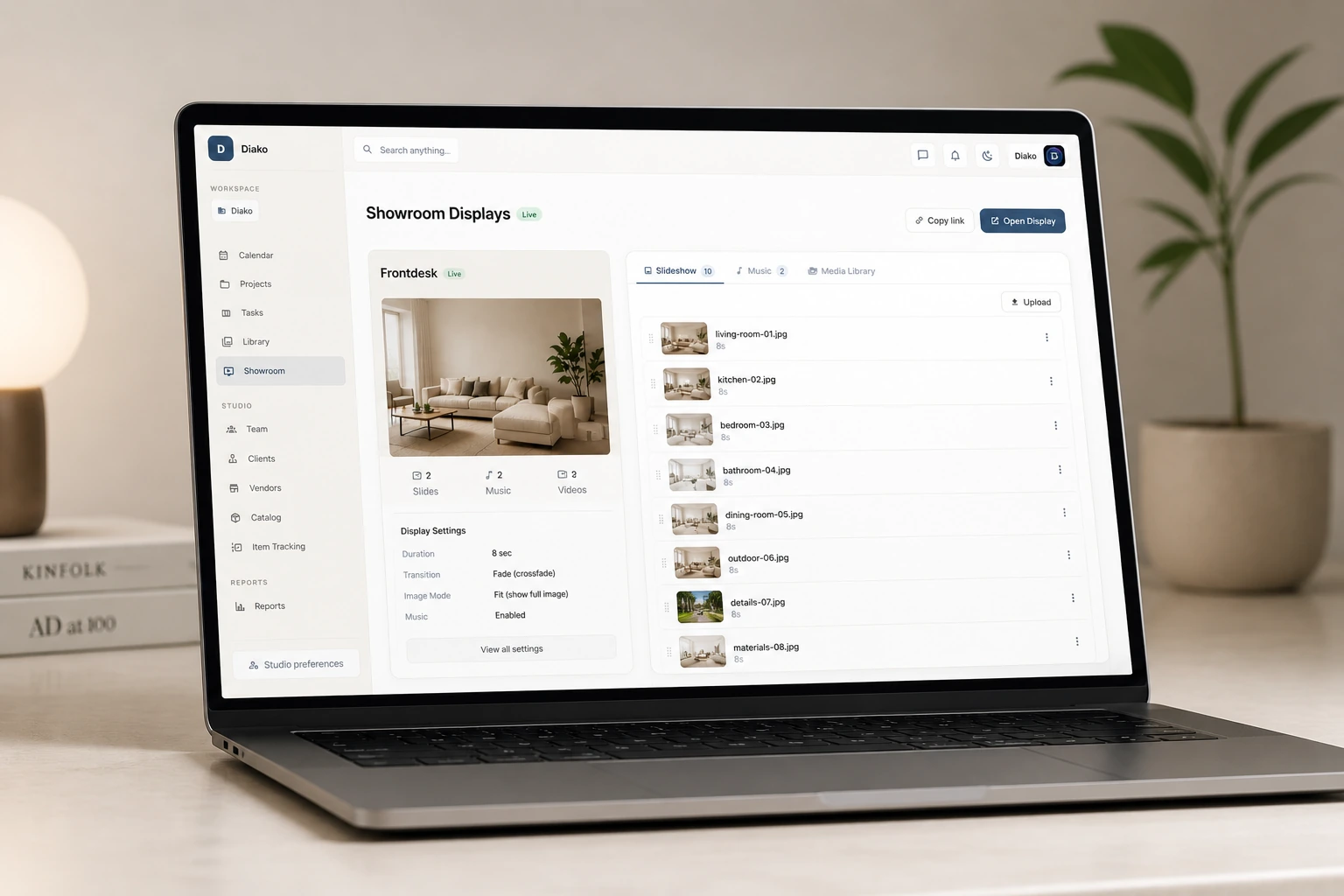
Manage slideshow visuals and music without a separate signage app
Each display has its own media library and two independent playlists: one for slideshow images and one for background music. Teams can upload JPG, PNG, WebP, GIF, MP3, WAV, OGG, or AAC files, reorder them with drag-and-drop, enable or disable entries, and set either a display-wide default duration or a per-slide override.
- Upload image formats such as JPG, PNG, WebP, and GIF along with audio tracks such as MP3, WAV, OGG, and AAC.
- Arrange slideshow and music playlists independently so the visual sequence and soundtrack each follow their own order.
- Override duration on specific slides when some visuals should stay visible longer than the default.
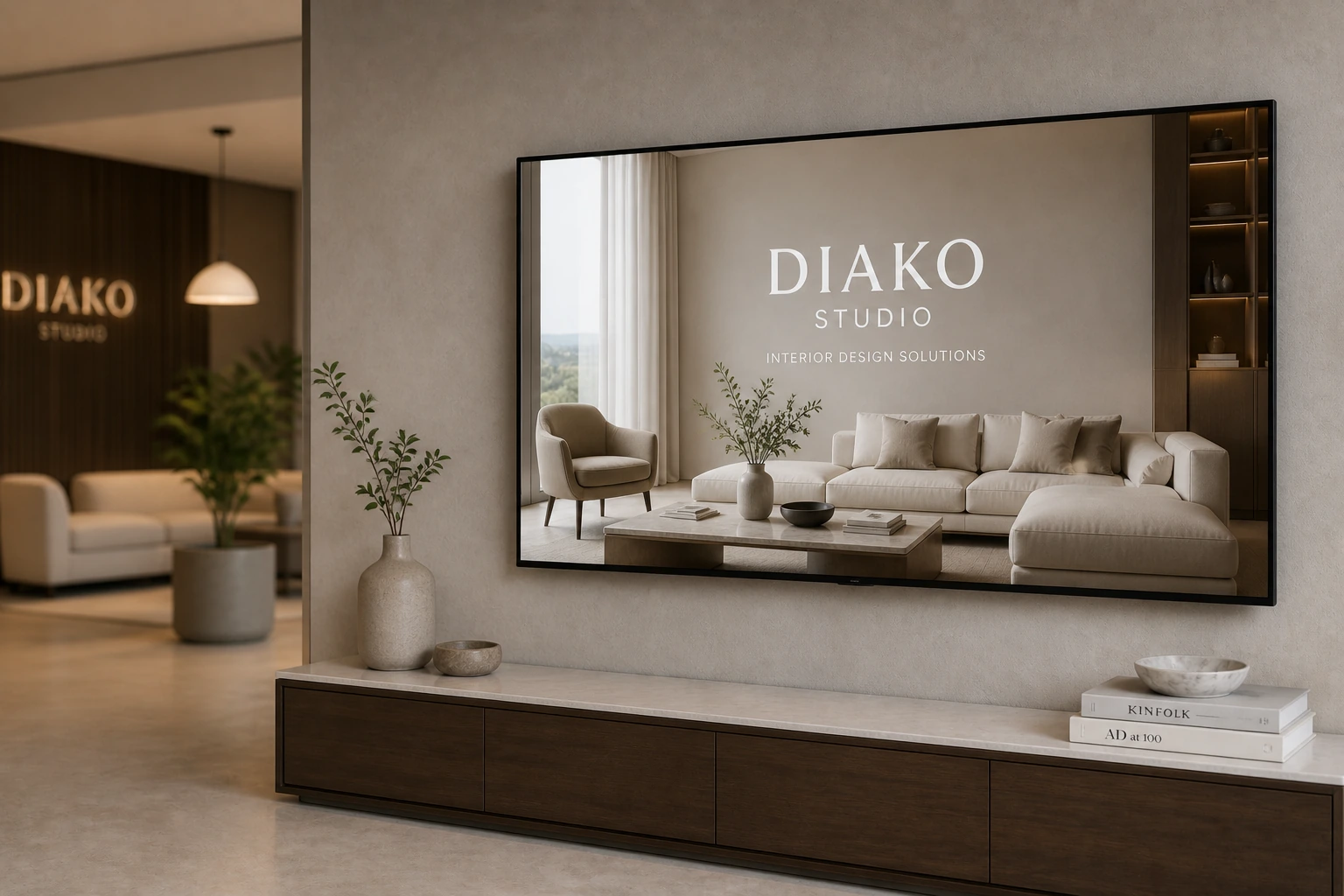
Keep public screens on the last approved content until an admin confirms the update
New media does not go live the moment it is uploaded. When images or audio are added, Diako sends a 6-digit confirmation code to studio admins. Until that code is entered, the public display continues serving the last confirmed snapshot, which protects reception and showroom screens from accidental, partial, or unauthorized changes.
- Require a 6-digit admin email code before newly uploaded display media can go live.
- Serve the last confirmed snapshot while changes are still pending approval.
- Keep settings changes separate from media confirmation so transitions, duration, or display name updates do not trigger the same publishing gate.
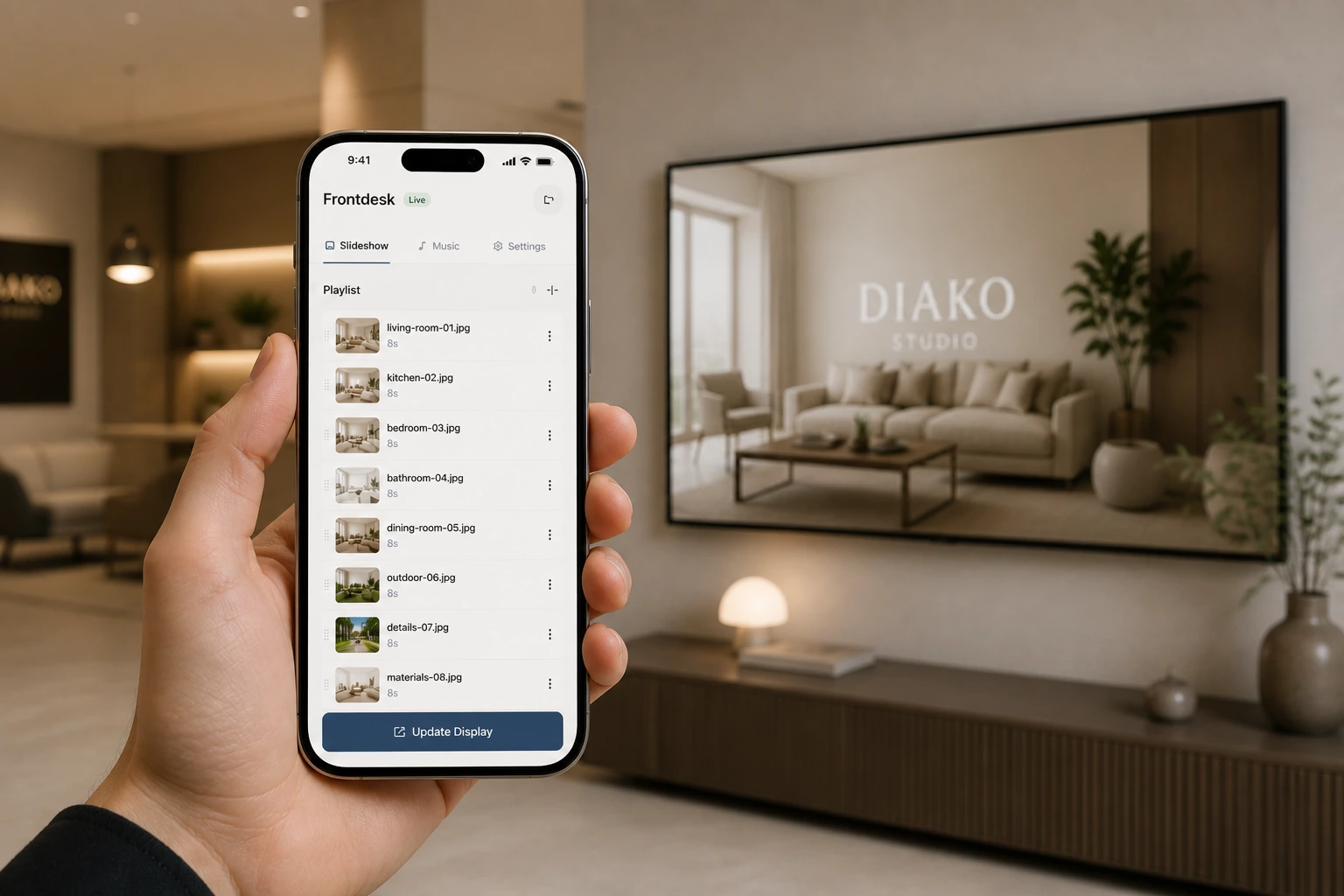
Present a smoother TV experience with fullscreen playback and automatic content refresh
The public display page is optimized for the screen itself, not for editing. It opens fullscreen, shows slides in sequence with transitions and a progress bar, plays background music, and polls for confirmed content changes every 30 seconds so connected screens update without anyone touching the TV.
- Show a clean public-facing playback experience with no admin controls on the screen.
- Preload media for smoother playback so the slideshow does not stutter when slides change or when confirmed content refreshes.
- Refresh connected screens automatically after content is confirmed instead of relying on someone at the screen.
Reduce friction inside the studio workflow
- Studios relying on USB drives, ad hoc slideshow apps, or manual browser refreshes to keep screens current.
- Public-facing screens showing content before an admin has actually reviewed and approved it.
- No structured way to manage image playlists, background music, per-slide timing, and fullscreen playback together.
- Reception and showroom TVs drifting away from the content the studio last intended to publish.
- Teams needing a public display surface that stays separate from the admin workspace itself.
Works better because it connects to the surrounding workflow
Related features
Explore the connected modules around this workflow
Each part of the platform is stronger because it links to the stages before and after it.
Reporting and Studio Visibility
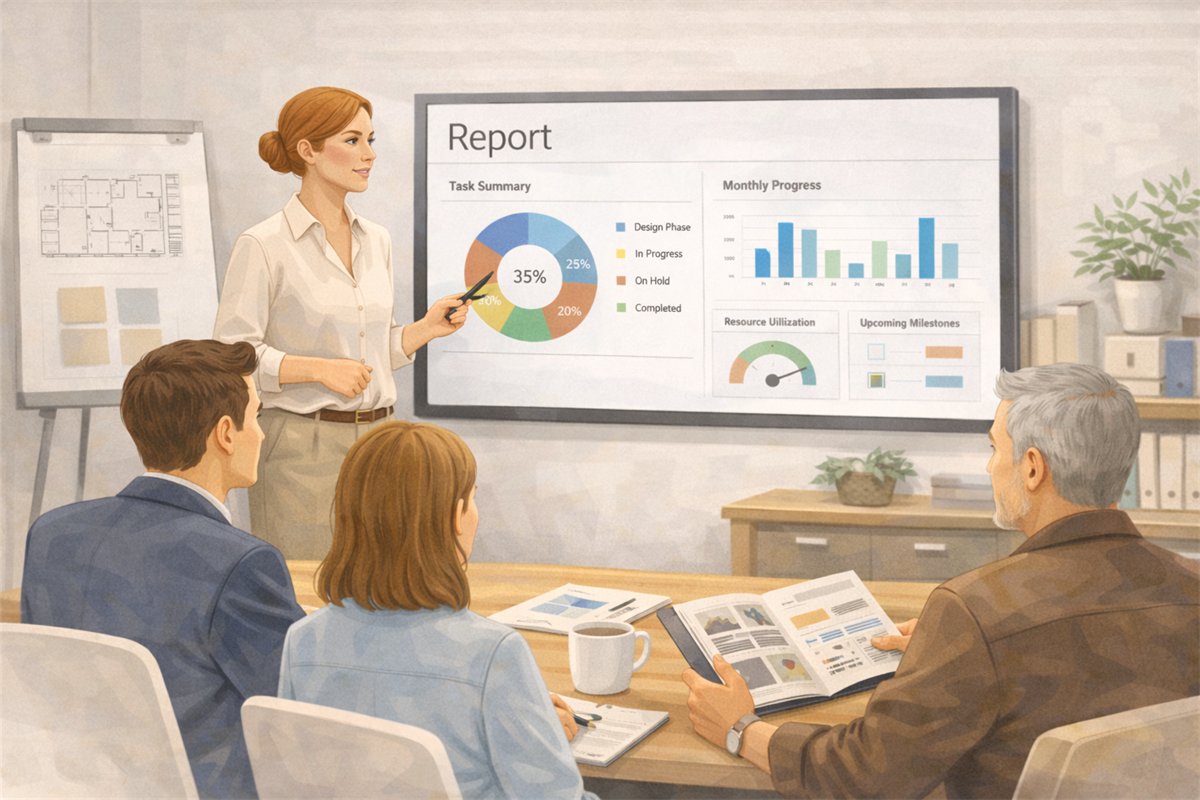
Track studio operations across projects, scheduling, task load, purchasing, invoicing, accounting, and reporting in one interior design business system.
Explore this feature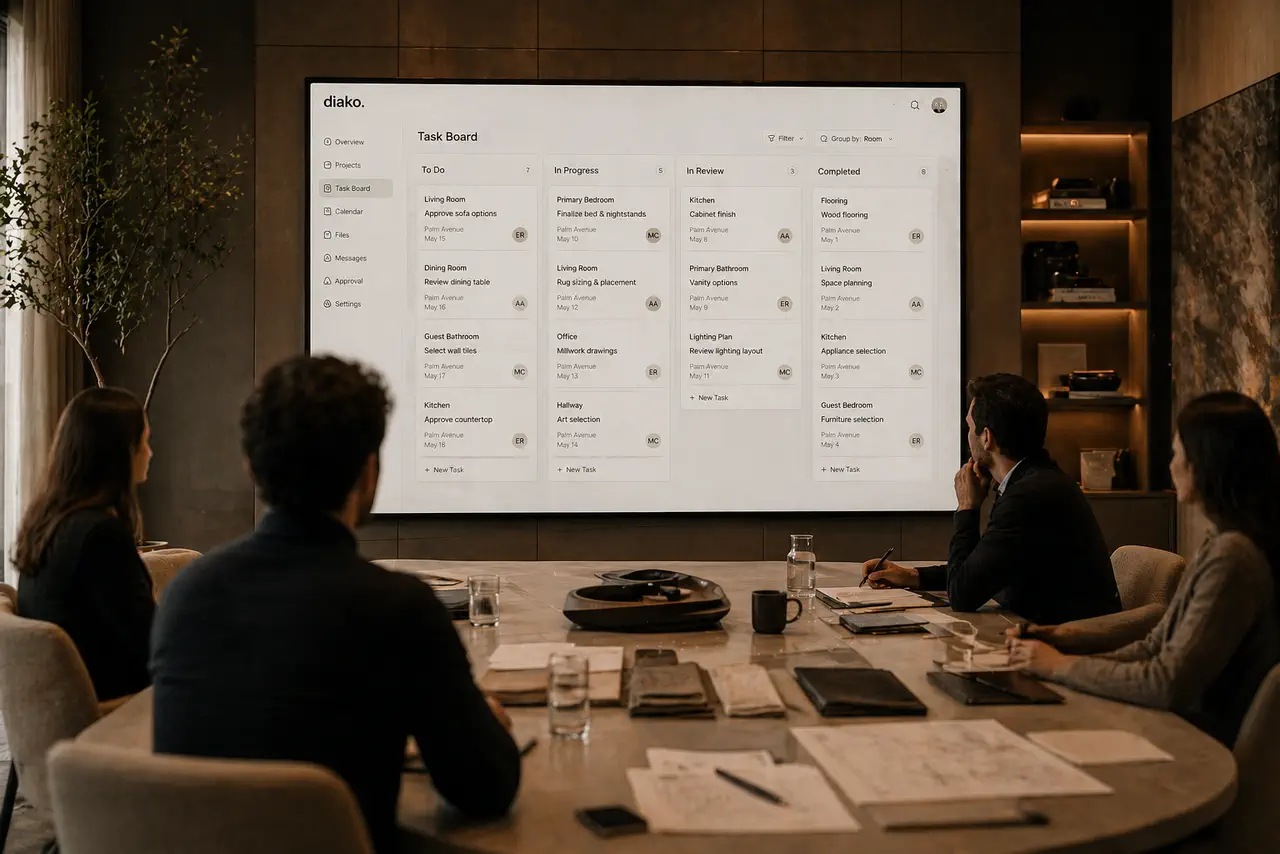
Project Management
Manage interior design projects by room, item, approval status, and team workflow in software built for real design studios.
Explore this feature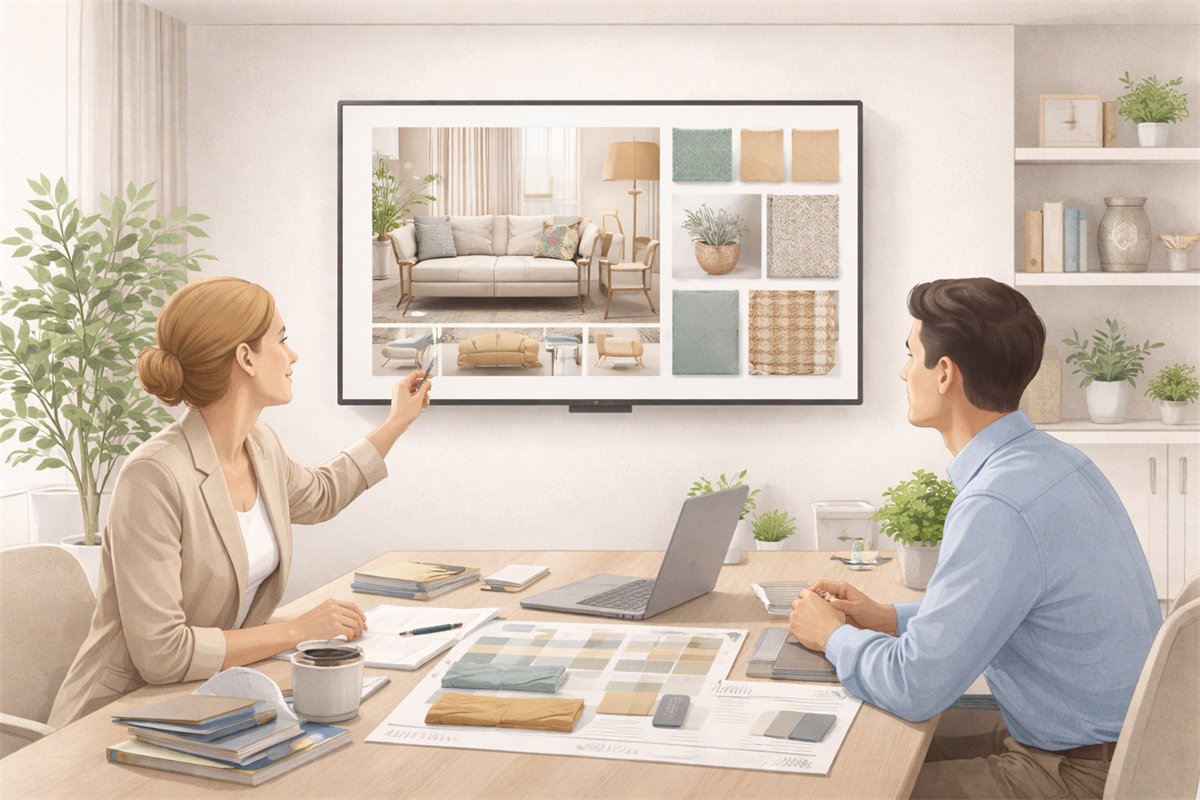
Mood Board Software
Create room-based mood boards for interior design projects with flexible composition, client sharing, and a direct path into specs, sourcing, and proposals.
Explore this featureFAQ
Questions studios often ask about this workflow
Clear answers for teams evaluating whether this part of the platform fits their process.
Can a studio create more than one showroom display?
Yes. A studio can create multiple named displays, each with its own public link, playback settings, and media playlists.
Does the public showroom screen expose the admin interface?
No. The public display page is a clean presentation surface intended for TVs and monitors, not an admin workspace.
Can the display be protected so anyone cannot open it freely?
Yes. Each display can optionally require a PIN before the screen content is shown.
What happens when new media is uploaded but not confirmed yet?
The live display continues serving the last confirmed snapshot. New content does not appear on public screens until an admin confirms it with the email code.
Do connected TVs need to be refreshed manually after an update?
No. The public display polls for updates regularly and picks up newly confirmed content automatically.
Do settings changes also require the email confirmation code?
No. The confirmation flow is for newly added display media. Settings such as transitions, duration, or display name do not require the same confirmation step.
See it in context
Start free to explore how this feature works inside the full studio platform
Diako Studio is built to help interior design studios connect creative workflow, client approvals, sourcing, proposals, purchase orders, and invoicing in one place.