
Organize mood boards by room or project area.
mood board software for interior designers
Mood Board Software for Interior Designers
Create interior design mood boards by room, present them to clients on a live link, and keep the board connected to what happens next. Diako Studio gives designers a freeform board with stronger composition tools, product-linked visuals, built-in review, and a direct path into selections, specifications, sourcing, and proposals.
Mood Board Only Access
Only need the Mood Board workflow? Start directly here: https://portal.diakostudio.com/register/moodboard
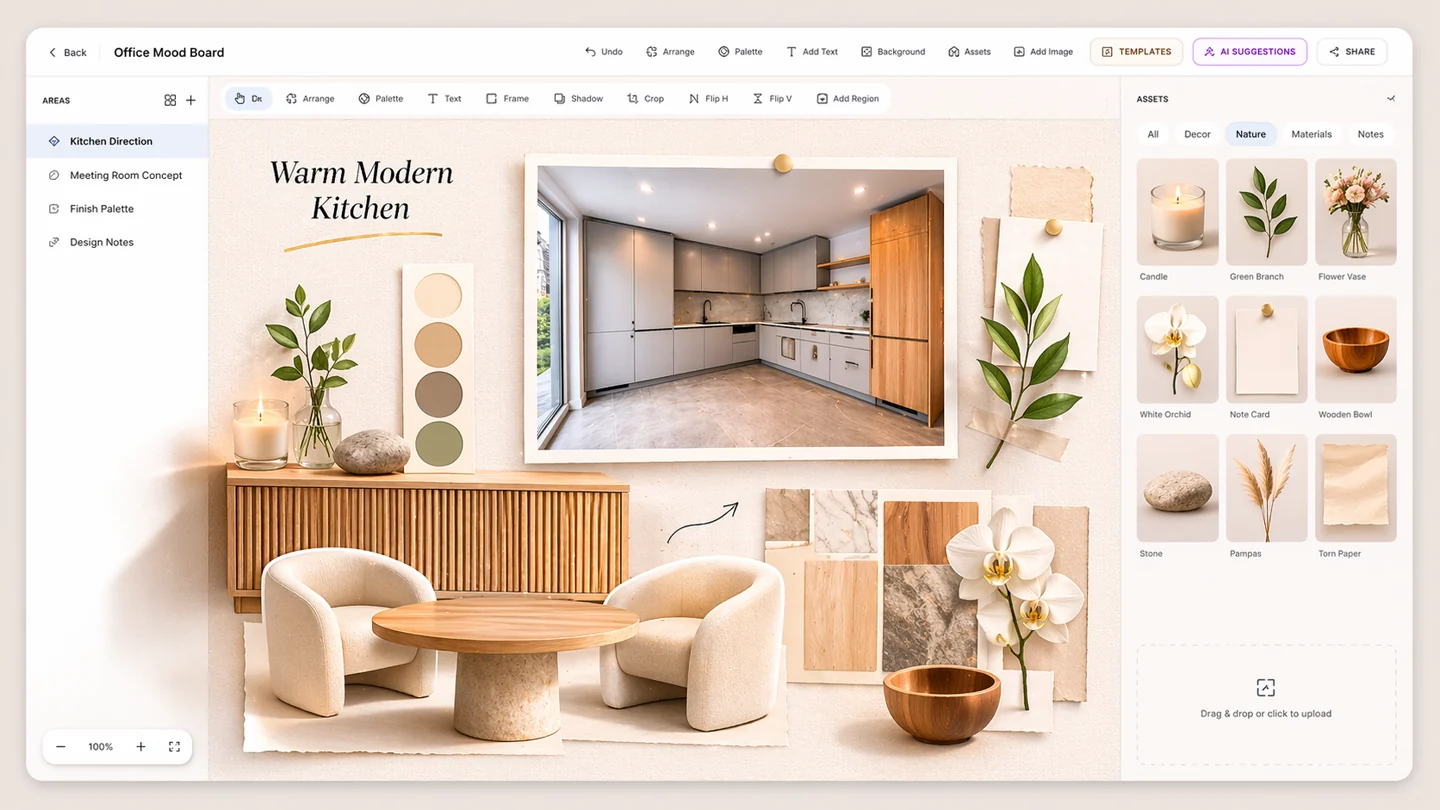
- Room-based boardsKeep kitchens, living rooms, and suites separated for clearer presentation and easier approval.
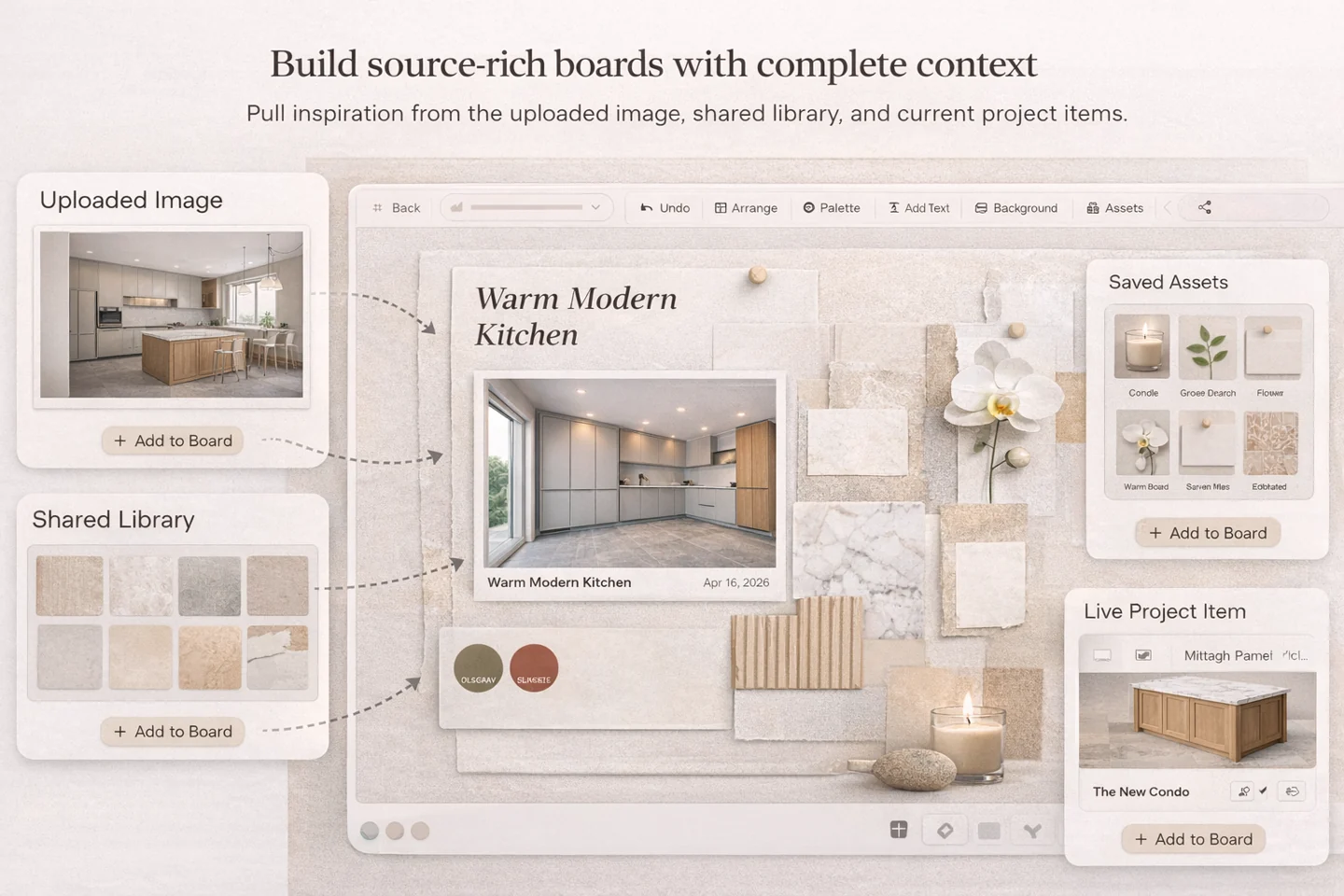
- Source-aware visualsPull from uploads, saved assets, shared libraries, and project items without losing image context.
- Board-aware AI critiqueAsk Anahita to review the current board, remember the area conversation, and use Deep Review when the concept needs a stronger second pass.
- Client-ready sharingShare polished live boards with secure links, comments, likes, and no export chaos.
Anahita walkthrough
See Anahita review a live mood board
Anahita is the mood board AI design partner inside Diako Studio. This walkthrough shows how designers can ask for honest board critique, use snapshot-aware feedback, and run Deep Review when the concept needs a more deliberate second pass.
Create room-based boards that look polished and stay organized
- Create one board per room or project area so concept presentation stays easier to review.
- Pull visuals from uploads, saved assets, the shared library, and live project items without losing useful product context.
- Compose polished boards on a freeform canvas with crop, masking, layering, backgrounds, frames, shadows, and flexible object styling.
- Add text, palette cards, annotations, and cutout imagery so the board explains the concept instead of showing disconnected references.
- Use templates, AI visual suggestions, AI layout help, object cleanup tools, and Anahita for board-aware critique to get from blank page to a stronger first direction faster.
- Share through secure links with optional PIN protection, comments, and likes instead of rebuilding a PDF for every review round.
- Move approved ideas into selections, specifications, sourcing, and proposals from the same board workflow.
Move from first concept to approved selections with less rework
- Start a board inside a live project and assign it to the room or area you are concepting.
- Pull in uploads, library images, saved assets, and project visuals while keeping the board tied to the job itself.
- Arrange imagery, text, palettes, notes, and backgrounds on a freeform canvas built for concept presentation.
- Ask Anahita to review the current room board, point out what feels unresolved, or explain the direction in client-friendly language.
- Use templates, AI visual suggestions, layout help, and remove-object editing when the team needs a faster first pass.
- Share the board with clients on a secure link for comments, likes, and review.
- Move approved direction into selections, specifications, sourcing, proposals, and purchasing workflow.
Product proof
Built for real interior design studio workflows
This is more than a collage tool. The board is designed for room-based concept presentation, practical client review, and the next operational step after the board gets approved.
See how the board connects to client portal for interior designers, product library for interior designers, interior design specification software, interior design proposal software, and interior design project management software.
Keep product notes, source links, and decision context attached.
Get snapshot-aware design critique from Anahita without leaving the board.
Share client-ready boards without rebuilding a PDF.
Move approved ideas into selections, specifications, proposals, and purchasing.
Use AI tools for visual exploration, layout help, and object cleanup inside the board workflow.
Who this workflow fits
Made for designers who need mood boards that present well and stay useful after approval
This workflow fits studios that want room-based concepting, cleaner client review, and a more direct handoff into the rest of the project.
A polished board workflow without stitching together extra apps
Start quickly when you mainly need room-based concepting, stronger presentation quality, and a cleaner way to share boards with clients.
A shared room-based process that reduces rework
Keep concept work tied to projects, source imagery, internal collaboration, and the next operational step instead of rebuilding decisions later.
Client-facing boards that look deliberate and feel easier to approve
Use styling controls, editorial layouts, templates, and live review links to present materials, palettes, and room direction with more confidence.
What is inside the mood board
Tools that help you source faster, present better, and keep boards editable
The goal is not just to place pictures on a page. This workflow helps studios organize visuals by room, build stronger presentations, and keep approved direction useful after the meeting.
Create room-by-room boards with flexible composition control
- Arrange each space on a freeform canvas with drag, resize, rotate, crop, flip, layering, and masks.
- Keep rooms or zones separated so presentations are easier to navigate and easier for clients to approve.
- Preserve transforms through saving, sharing, and export so the board stays consistent everywhere it appears.
Explain the concept, not just the image selection
- Place free text anywhere on the canvas for notes, headings, and design callouts.
- Build palette cards with eyedropper-based color picking and flexible swatch layouts.
- Use annotations when the team needs to explain materials, pairings, or detail logic more clearly.
Make the board feel presentation-ready
- Use frame styling, border controls, background images, and multiple shadow treatments to improve depth.
- Create tactile material-board effects with paper-style shadows, clean white cards, and elevated sample framing.
- Mix decorative assets, cutouts, and styled backgrounds without flattening the work into a static export too early.
Bring visuals in without losing source context
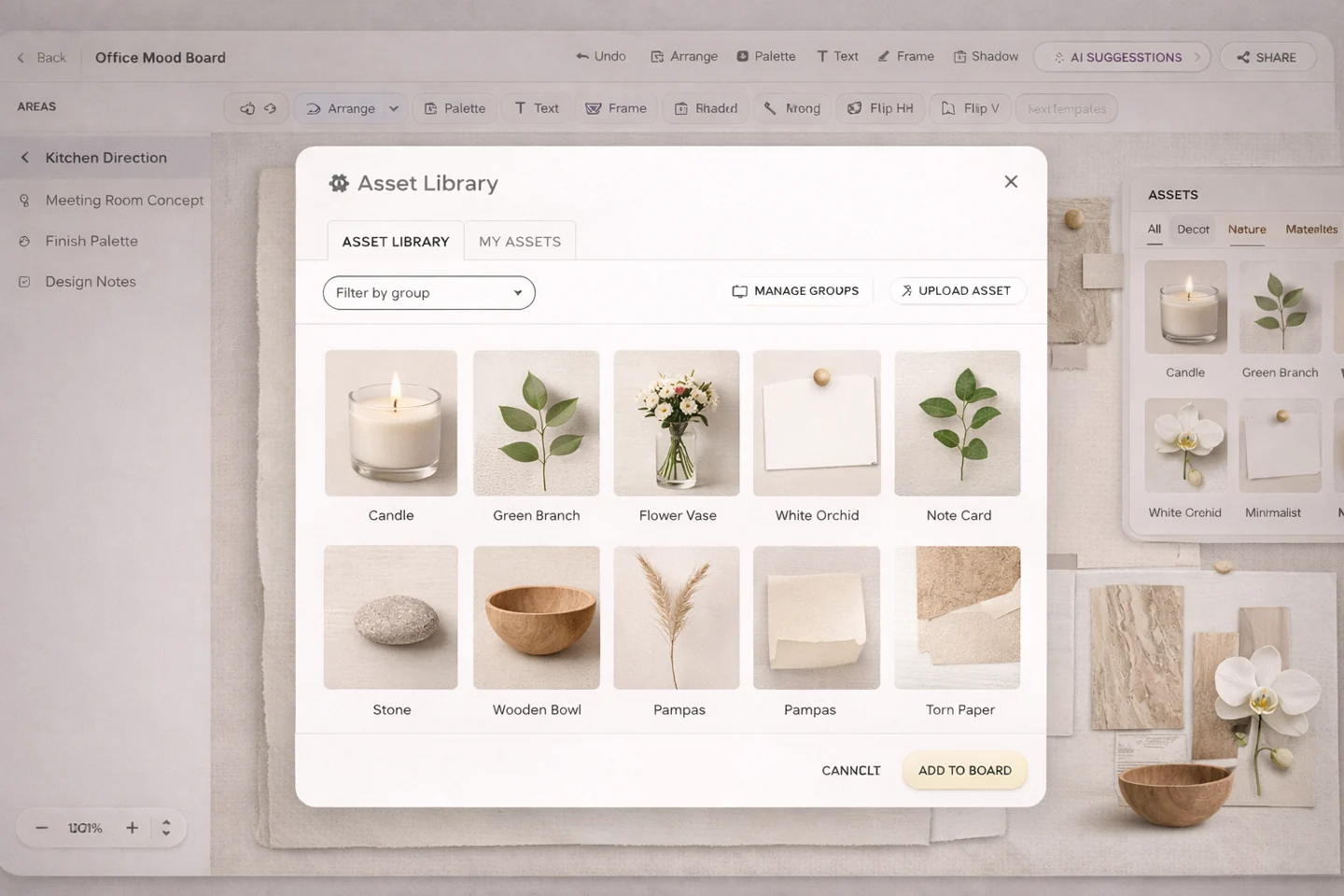
- Add images from direct uploads, the shared library, saved studio assets, and project-based item imagery.
- Preserve room and item relationships so the board is easier to action later during sourcing or specification work.
- Work faster with reusable decorative elements and a growing saved-asset library.
Review with clients on a live board
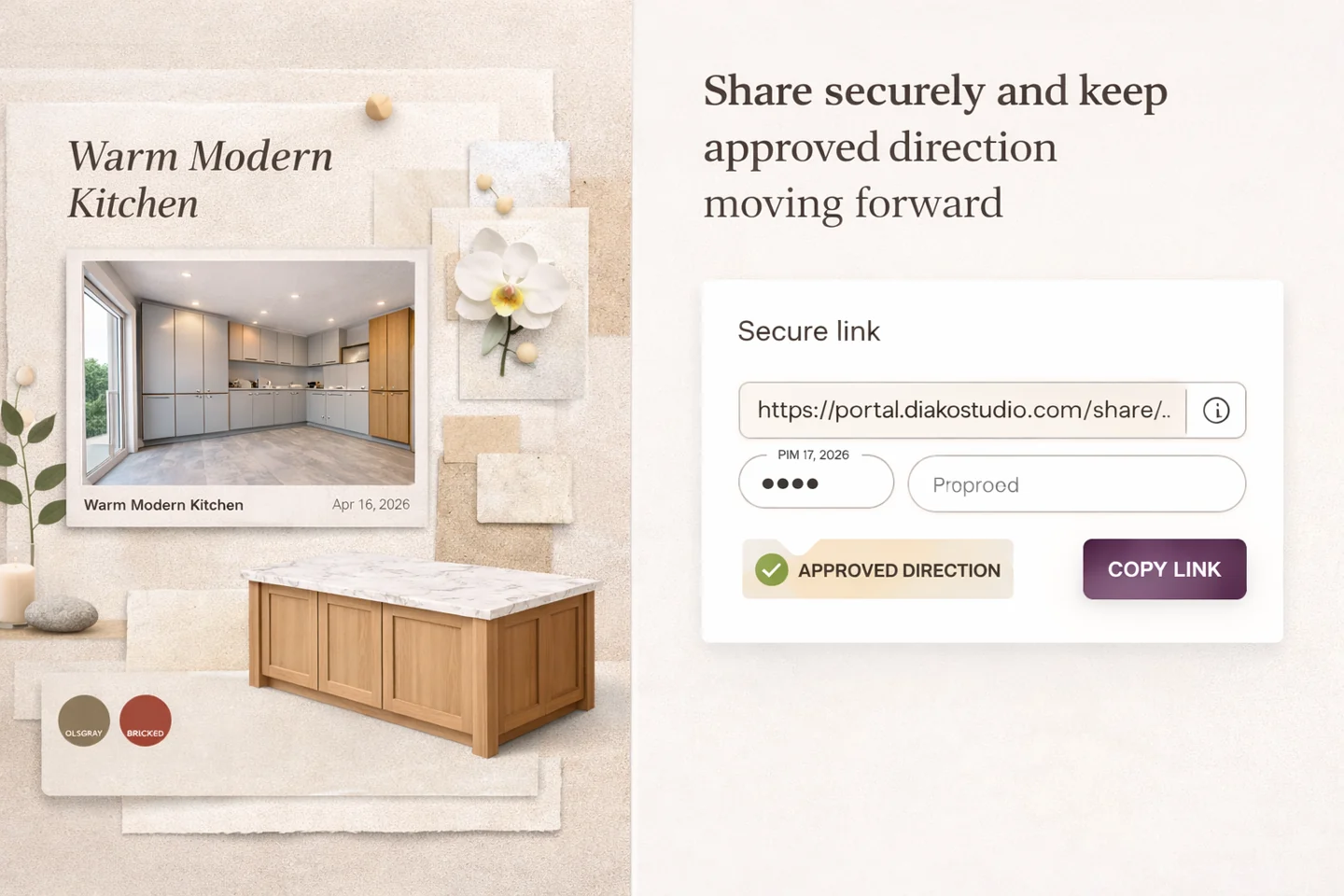
- Share secure links with optional PIN protection instead of exporting and emailing static files.
- Let clients comment, like, and review the board without needing a full studio account.
- Render masks, rotation, palettes, text, and styling faithfully in the shared experience.
Start faster and refine direction without leaving the board
- Start from placeholder-based templates, auto-arrange existing imagery, or save any board as a reusable template.
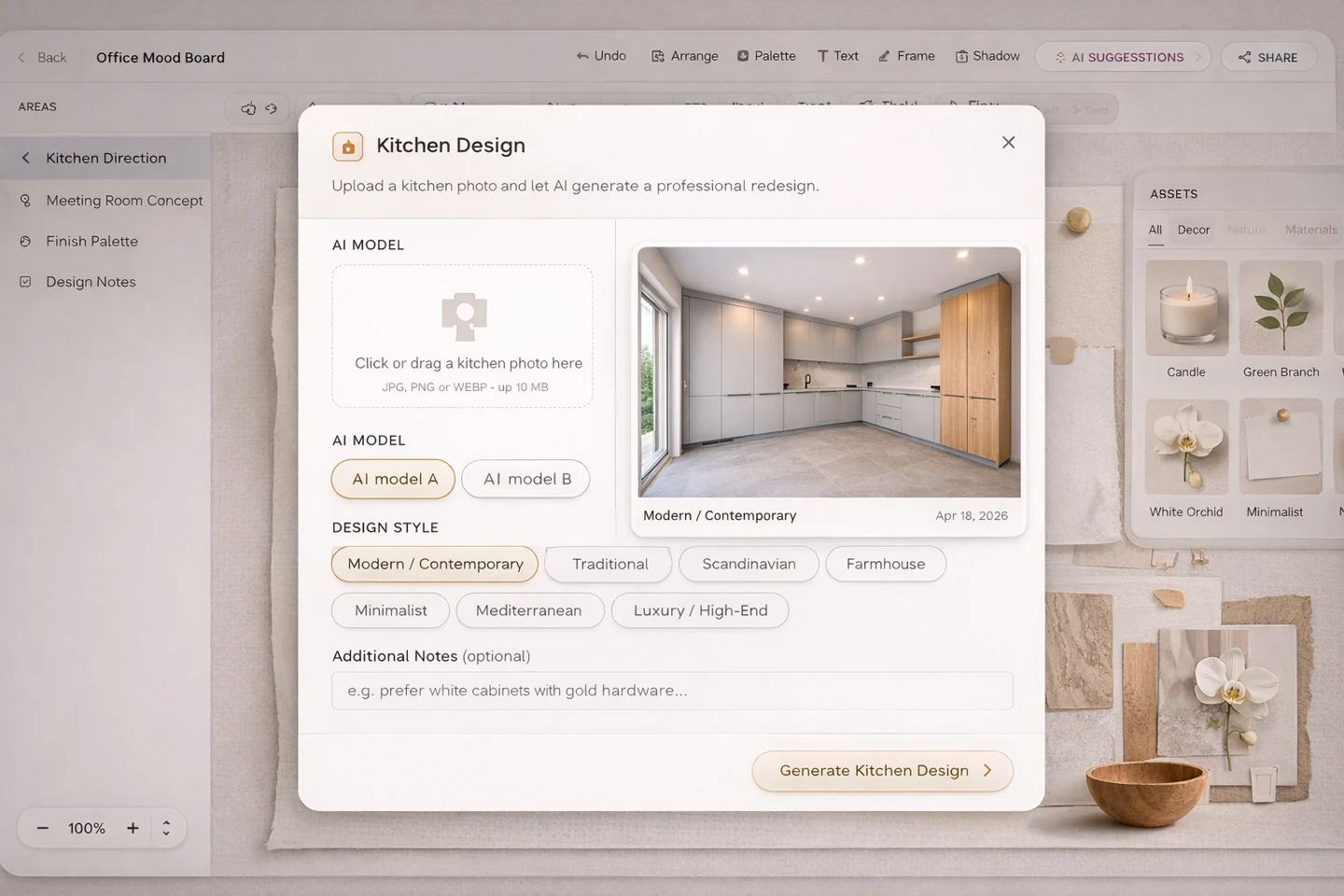
- Use AI Visual Suggestions to explore alternative room directions and generate fresh concept imagery without leaving the board workflow.
- Ask Anahita for board-aware critique, premium-direction feedback, client-friendly design explanations, and persistent per-area chat history.
- Turn on Deep Review when the board needs a more deliberate 3-step critique before presentation.
- Use AI Board Layout and Remove Object from Image when the team wants faster composition cleanup, better placement, or a cleaner source image before presenting.
- Keep the original board editable at all times instead of accepting one locked generated result.
Source-rich board building
Build each room board from visuals you can actually trace back
Designers move faster when inspiration, supplier imagery, saved assets, and project items can sit on one board without losing their origin. Diako keeps that context closer to the canvas, so sourcing is easier and boards are less likely to become dead-end collages.
- Pull from uploads, the shared library, saved assets, and project item imagery in one place.
- Keep clearer room and item context so boards are easier to explain and easier to action later.
- Reduce time spent hunting down the original image when a client asks to see the real option.
Canvas and toolbar control
Edit quickly without cluttering the canvas
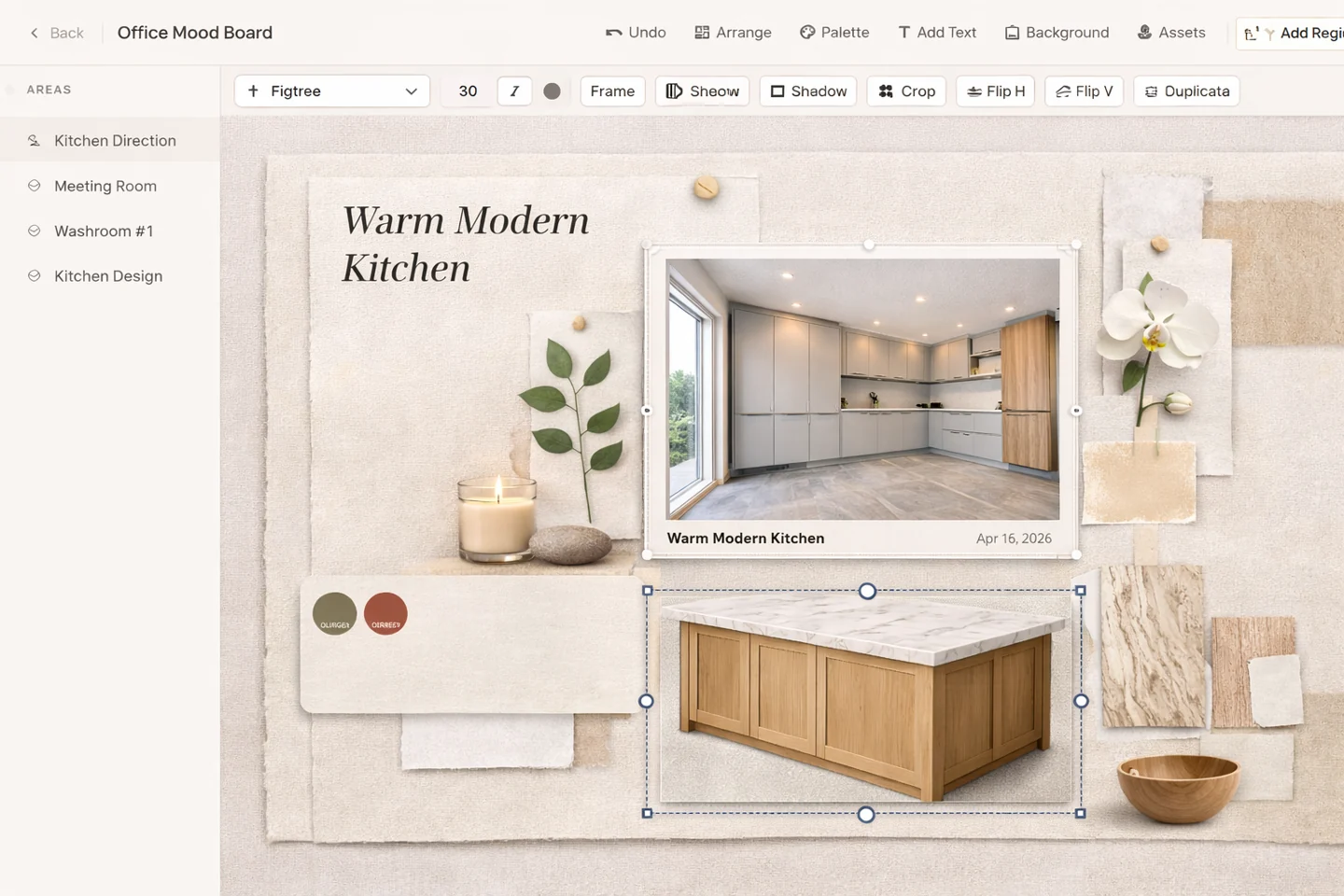
The board editor is built for fast arranging, not control hunting. Object actions stay close to the element you are working on, which helps teams make composition changes faster and keep presentations cleaner while they build.
- Use context-aware tools for move, resize, crop, rotation, layer, and styling changes.
- Keep dense boards manageable as presentation details increase.
- Spend more time refining hierarchy and less time navigating the interface.
Presentation-quality styling
Shape the whole board, not just the objects on it
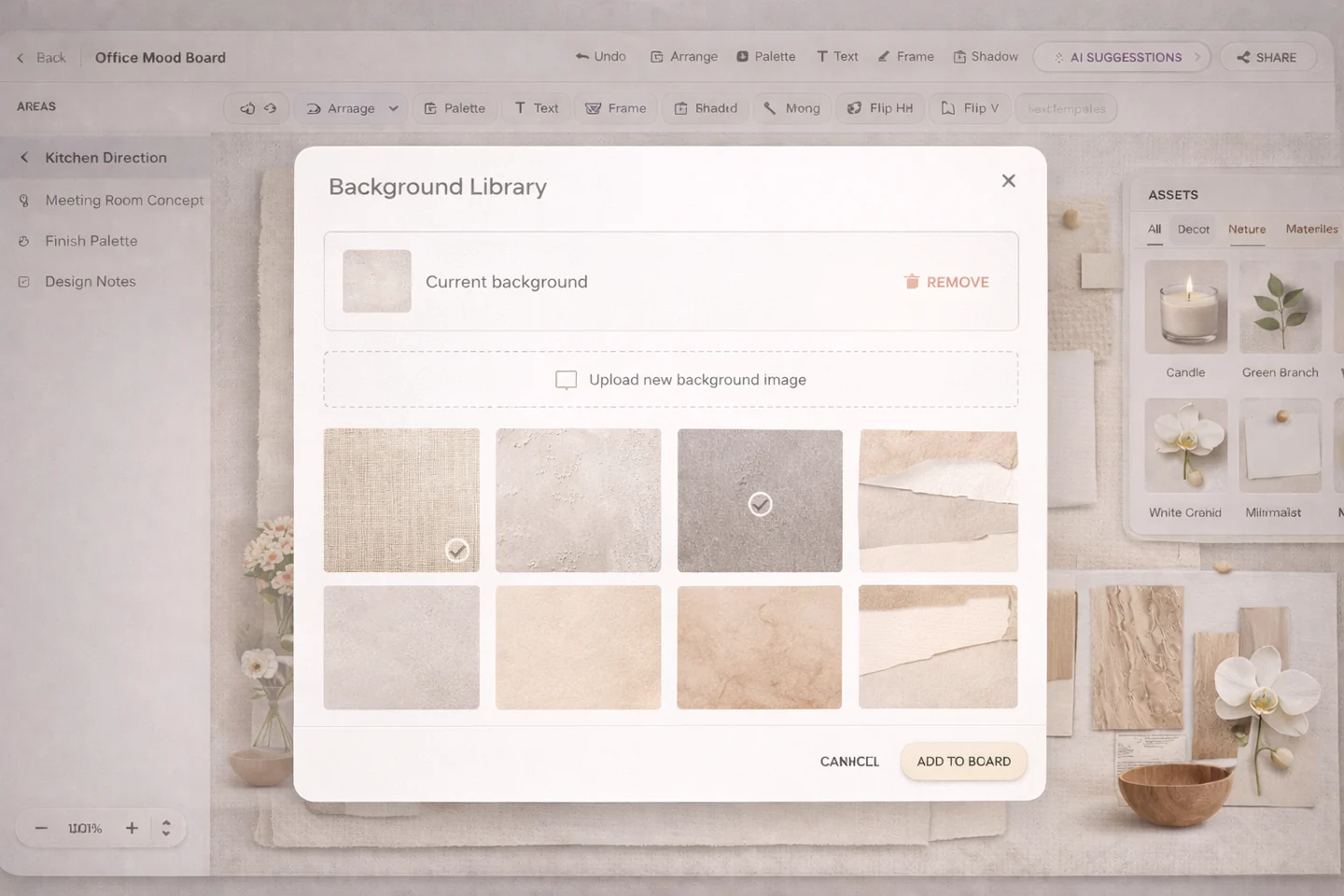
Presentation quality often comes from the background, spacing, and overall depth. Diako gives designers more control over the full composition, so room concepts read as polished boards instead of rough screenshots on a page.
- Add full-canvas backgrounds and layer visuals with better depth.
- Create cleaner hierarchy for materials, cutouts, palettes, and hero imagery.
- Present room direction in a format that feels closer to a finished client deliverable.
Asset library and visual props
Reuse styling assets across projects
Studios often rely on a repeatable presentation language: paper shadows, sample cards, cutouts, texture swatches, or decorative props. Keeping those assets inside the board workflow speeds up presentation building and makes outputs more consistent across the studio.
- Reuse saved props, cutouts, and presentation elements across boards.
- Keep styling consistent without recreating the same layout tricks every time.
- Build faster when the board already has the visual ingredients you use most.
AI-assisted exploration
Use AI suggestions, critique, and cleanup tools without losing manual control
AI works best here as a design accelerant, not a locked replacement for the board. Diako lets teams generate AI visual suggestions, explore kitchen-focused directions, clean up source images with object removal, and ask Anahita for honest, conversational critique based on the actual board they are building.
- Generate AI visual suggestions when the team wants a faster first direction or alternate concept path.
- Ask Anahita to review the current board snapshot, spot inconsistencies, explain what feels premium, or suggest how to make the concept feel more resolved.
- Use Deep Review when the board deserves a more careful 3-step critique before client presentation.
- Remove unwanted objects from an image before it goes on the board so the presentation looks cleaner and more intentional.
- Keep manual control over layout, styling, and final board decisions after the AI work is done.
Review and downstream workflow
Share with clients and keep the next step close
Review works better when clients see a polished live board and the team does not have to rebuild approved concepts elsewhere. Diako supports secure sharing, feedback, and a cleaner handoff into selections, specifications, sourcing, and proposals.
- Send secure links with optional PIN protection and no full client account requirement.
- Collect comments and likes on the live board instead of static exports.
- Reduce rework by carrying approved direction into downstream studio tasks.
Comparison
Generic mood board apps vs Diako mood boards
Generic mood board tools are useful for visual inspiration, but they often stop once the client approves the direction. Diako keeps mood boards connected to the rest of the project, so products, notes, sources, approvals, and next steps stay usable after the presentation.
Useful for inspiration, limited after client approval
- Good for inspiration and visual collage.
- Often separate from sourcing, specifications, proposals, and purchasing.
- Approved items usually need to be copied into another tool.
- Client comments and decisions can become disconnected.
Built for interior design studio workflow
- Organized by room or project area.
- Product and source details stay attached.
- Board-aware AI critique is built into the workspace through Anahita.
- Client feedback stays connected to the board.
- Approved items can move into selections, specs, proposals, and purchasing.
- Designed for interior design studio workflow, not just visual presentation.
Remove the friction created by disconnected mood board tools
- Boards created in standalone tools with no clean path into selections, sourcing, or specifications.
- Images losing room, item, or supplier context once they are placed on the board.
- Client feedback spread across exports, email threads, and disconnected review notes.
- Approved concepts having to be rebuilt later for proposals, procurement, or project records.
- Too much switching between board apps, folders, shared drives, and live project data.
Use the linked tools that carry approved boards into the next step
Product Library for Interior DesignersTurn approved direction into reusable product records, cleaner selections, and faster sourcing.Project Management for Interior Design StudiosKeep each board tied to rooms, tasks, approvals, and the rest of the live project.Client Portal for Interior Design ApprovalsShare boards through a clearer review experience that keeps client comments and decisions easier to follow.
Start the right way
Choose the signup path that matches how your studio wants to start
Studios that mainly want the Mood Board workflow can start there first, then expand into the broader platform when they are ready for selections, sourcing, proposals, and the rest of the studio workflow.
Related workflow
Continue from mood boards into product records, project tracking, and client approvals
These linked modules help teams carry approved direction into the next operational step without losing context.
product library for interior designers
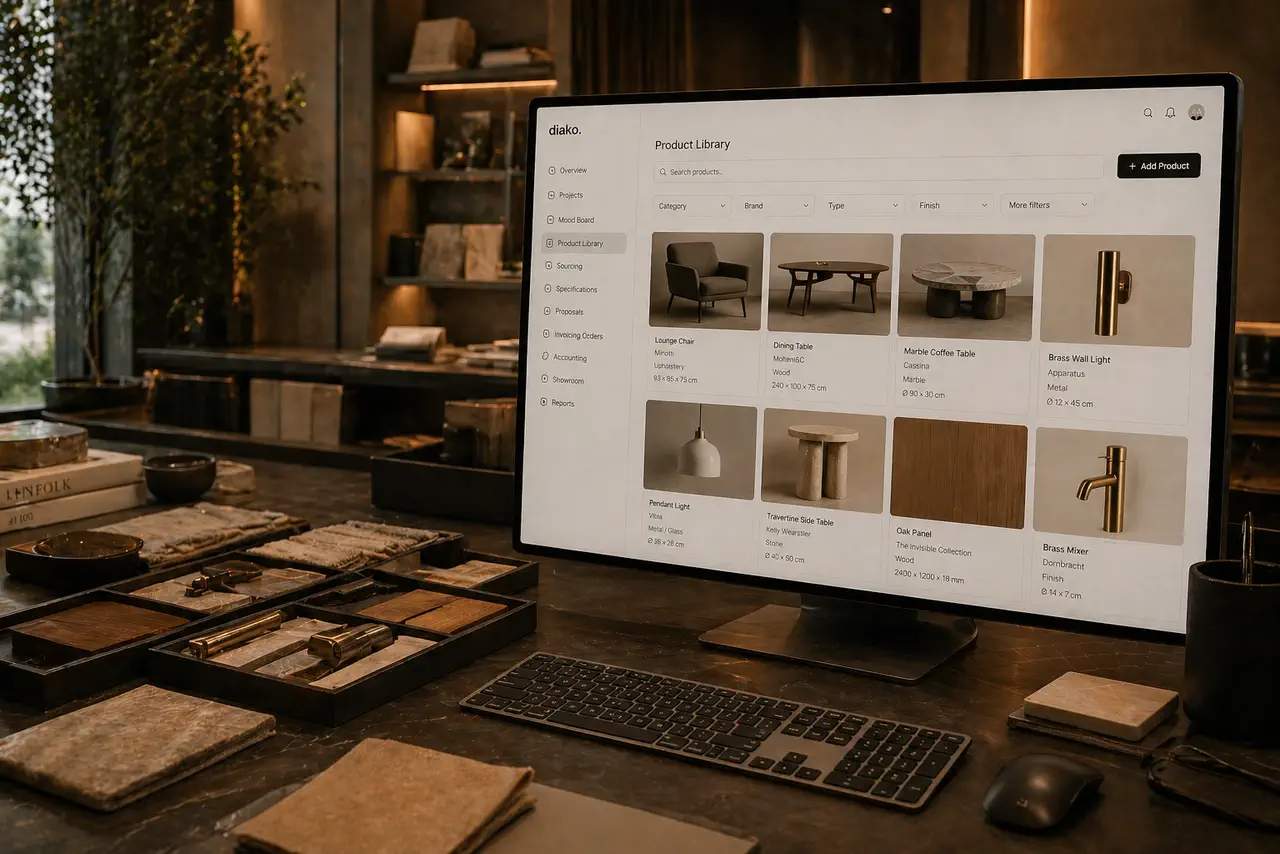
Product Library
Keep products, finishes, suppliers, and pricing in a reusable library the team can carry into specs and sourcing.
Explore this feature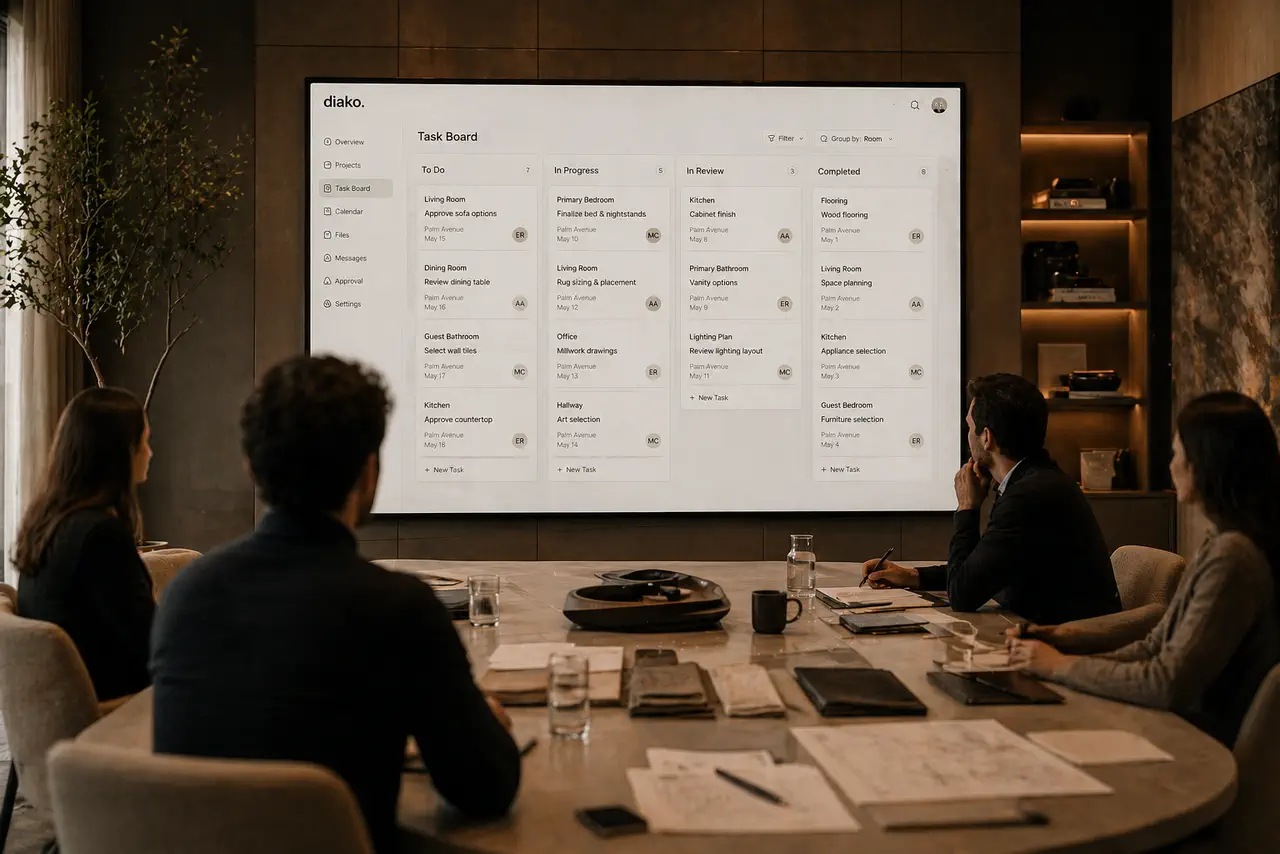
interior design project management software
Project Management
Manage interior design projects by room, item, approval status, and team workflow in software built for real design studios.
Explore this feature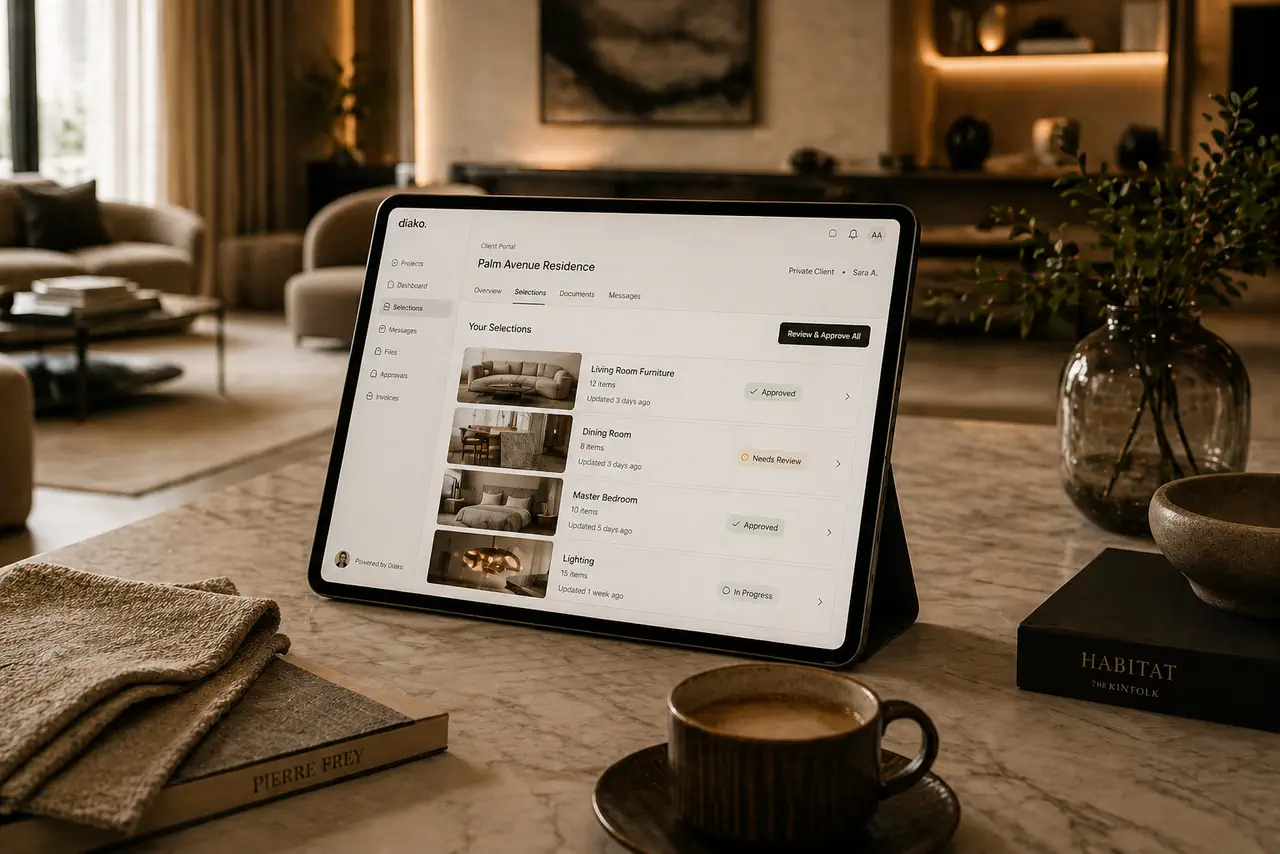
client portal for interior designers
Client Portal
Give clients a polished place to review selections, proposals, and approvals without relying on messy email chains.
Explore this featureFAQ
Common questions about mood board software for interior designers
Clear answers for teams comparing tools and deciding how the board should fit into the rest of the studio process.
What makes this mood board software useful for interior designers?
It combines room-based boards, stronger presentation control, live client sharing, and a direct path into selections, specs, sourcing, and proposals.
Can I create separate mood boards for each room or area?
Yes. Boards can be organized by area, so living rooms, kitchens, bedrooms, and other spaces stay clearly separated and easier to present.
Can I build presentation-quality mood boards inside Diako Studio?
Yes. Designers can use freeform composition, text, palettes, backgrounds, frames, masking, and shadow controls to create polished client-facing boards.
Does the board keep track of where images came from?
Yes. You can pull from uploads, saved assets, the shared library, and live project items while keeping source links and project context easier to trace.
Can clients review a mood board without a full account?
Yes. Share a secure link with optional PIN protection so clients can view, comment on, and like the board without a full studio login.
Can multiple team members work in the same mood board?
Yes. Teams can collaborate on the same board with live presence and active-object awareness to reduce editing conflicts.
Is there an AI design assistant inside the mood board?
Yes. Anahita is built into the mood board as a conversational design partner. She can review the active board, respond using the current area context, remember the conversation for that area, and offer an optional Deep Review mode when the concept needs a more deliberate second pass.
What happens after a mood board is approved?
Approved ideas can move into selections, product records, specifications, sourcing, and proposals, so the team does not have to recreate the board decision in a separate tool.
Is there a plan if I mainly want the mood board workflow?
Yes. There is a Mood Board-focused signup path for teams that want to start with concepting first and expand later if needed.
Try it free
See how room-based mood boards fit into the wider studio workflow
Start with a room-based mood board, then carry approved ideas into the rest of the studio workflow.