
interior design calendar software
Interior Design Calendar Software for Studio Scheduling
Diako Studio gives interior design studios a company-wide calendar that works as an operational home screen, not a side widget. Teams can schedule project work, link events back to live projects, assign attendees, categorize work with task codes, and connect logged time to payroll-aware cost reporting without rebuilding the same context in separate tools.
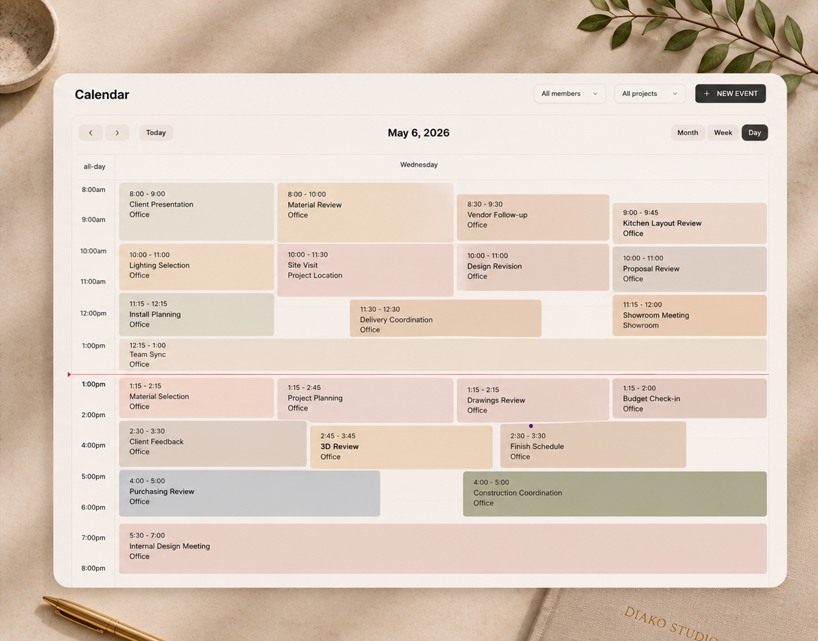
- Company calendar home screenUse the calendar as the first operational view after login instead of piecing schedules together elsewhere.
- Project-linked eventsAttach events to real projects so site visits, meetings, and work sessions stay tied to the right context.
- Payroll-aware cost trackingCarry event task codes into Time and Cost reporting with snapshotted hourly rates per team member.
See the calendar, task, and payroll flow in action
This walkthrough shows how scheduling connects to projects, task-code categorization, and payroll-aware time and cost visibility inside the same workflow.
Calendar and Scheduling for professional studio workflow
- Use a company-wide calendar as the daily dashboard for scheduling, ownership, and team coordination.
- Create events with title, description, start and end time, all-day mode, timezone, location, and internal attendees.
- Link calendar events to a specific project so scheduling stays connected to real project context.
- Assign optional task codes on events so hours can flow into payroll-aware Time and Cost reporting.
- Keep operational follow-through organized with project-linked task board work alongside the calendar.
Built to support connected studio handoffs
- Open the calendar as the default home screen to see what is happening across the studio in month, week, or day view.
- Create an event with the scheduling details the team needs and attach attendees, timezone, location, and ownership.
- Optionally connect the event to a specific project so meetings, site visits, and design work stay tied to the job they belong to.
- Assign a task code such as Design, Site Visit, Client Meeting, Administration, or Procurement when the studio wants cost categorization.
- Use the linked scheduling data in Time and Cost reporting while the related project work continues through the task board and wider studio workflow.
Scheduling workflow
Run scheduling, task context, and labor visibility from one connected calendar
This workflow is not just about booking meetings. Diako uses the calendar as an operational layer that connects project context, attendee coordination, task-code categorization, payroll snapshots, and follow-through work across the studio.
Use the calendar as the studio home screen for daily operational visibility
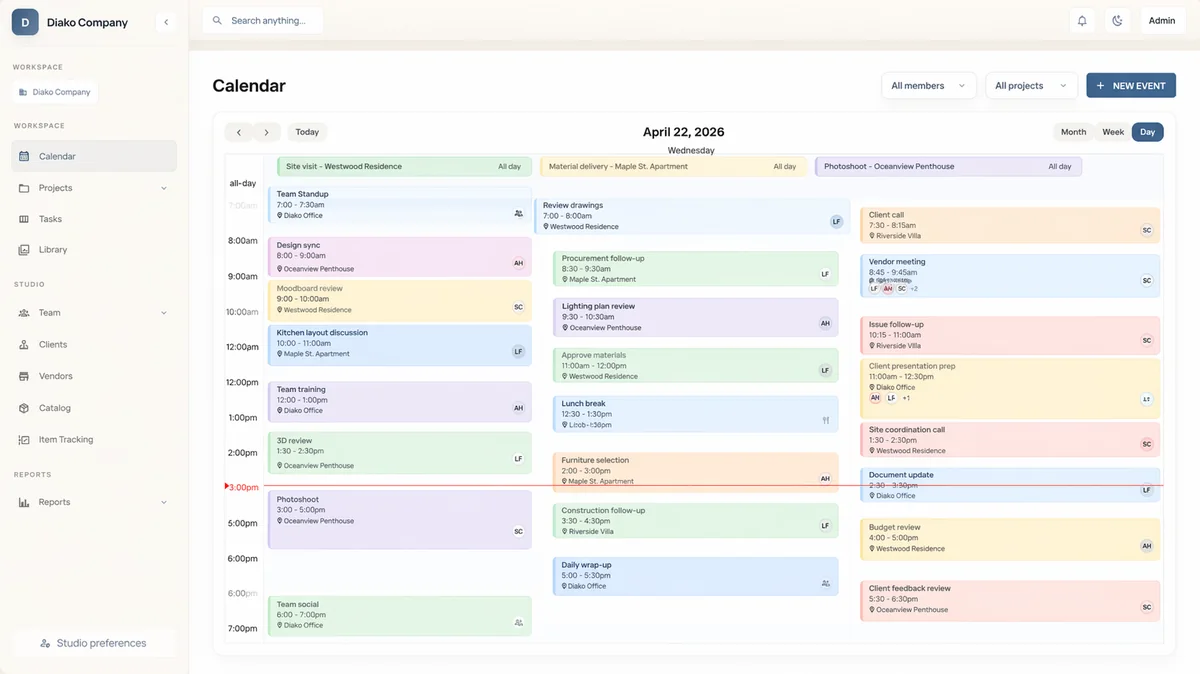
The calendar is designed to be a live company-wide dashboard. Teams can work in month, week, and day views with drag-and-drop editing, clear event ownership, and the practical scheduling fields studios need for real project work.
- Create events with title, description, time, all-day mode, timezone, location, and internal attendees.
- See ownership more clearly because each event is displayed in the creator color.
- Use month, week, and day views with drag-and-drop editing and resizing for faster schedule changes.
Keep every scheduled event tied to the project it belongs to
A calendar becomes more useful when it stays connected to the live project record. Diako lets events optionally link to a specific project, which keeps site visits, client meetings, design work, and reminders attached to the project context instead of drifting into generic scheduling history.
- Link events back to specific projects when the schedule should remain tied to real delivery work.
- Filter the calendar by user or project so teams can isolate the schedule view they need.
- Add attendees without losing the event owner, project context, or internal visibility.
Connect events to payroll categories and preserve labor cost accuracy
Calendar events support an optional task code field, with task codes defined in the Payroll and Rates module. That means scheduled work can be categorized as Design, Site Visit, Client Meeting, Administration, Procurement, or other studio-defined categories. When time is logged, the hourly rate used is the snapshotted payroll rate for that team member at that moment, so future rate changes do not rewrite historical cost.
- Use task codes on events to classify the type of work being performed.
- Capture the effective hourly payroll rate as a snapshot when time is logged.
- Keep Time and Cost reporting accurate even after later payroll changes.

Keep scheduling and operational tasks connected without pretending they are the same thing
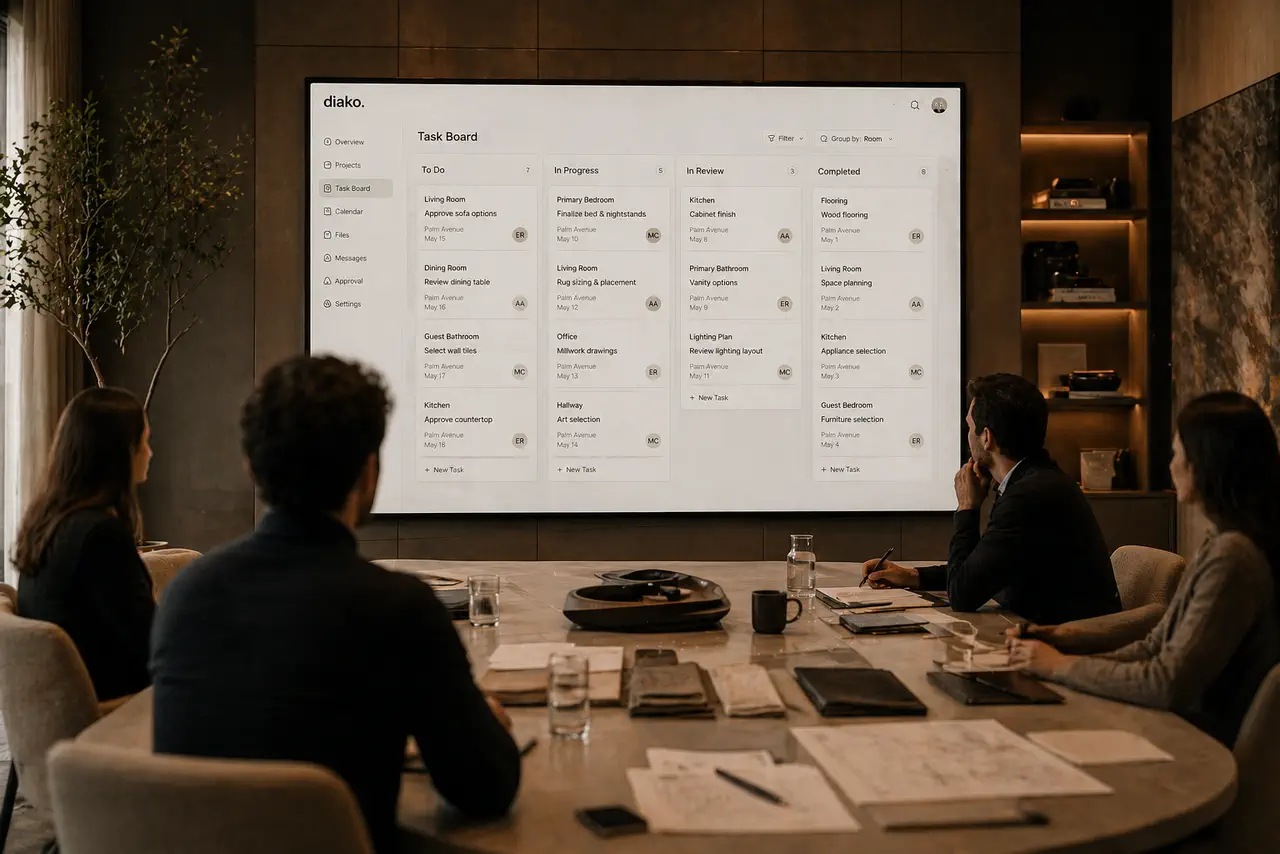
The calendar handles scheduled activity, while the task board manages ongoing operational work. Diako keeps those two layers close together: events can define when work happens and how it should be categorized, while tasks can stay linked to project, area, or item context so the team can follow through after the scheduled moment passes.
- Use the calendar for scheduling, attendees, visibility, and time-linked event planning.
- Use the task board for assignable operational work with due dates, priorities, comments, and checklists.
- Keep both layers tied back to project context so scheduling and execution do not split apart.

Support real studio coordination with privacy controls and quick external calendar handoff
Studios often need both internal operational control and outside coordination. Diako supports public and private events, shows a clean read-only info card before editing, and lets creators open prefilled Google Calendar or Outlook event pages without requiring an API sync.
- Use Public and Private event visibility depending on whether the event should be seen by the whole studio or only participants.
- Open a read-only event info card first so people can review details without dropping straight into edit mode.
- Add an event to Google Calendar or Outlook from the saved Diako event when outside calendar visibility is still needed.
Reduce friction inside the studio workflow
- Studio schedules split across personal calendars, generic calendar tools, and disconnected project records.
- Meetings and site visits happening without a clear link back to the project context they belong to.
- No consistent way to categorize scheduled work for labor-cost reporting and internal review.
- Payroll changes distorting historical time-cost analysis when older work is recalculated with newer rates.
- Task follow-through drifting away from scheduling because calendar and operational work live in separate systems.
Works better because it connects to the surrounding workflow
Related features
Explore the connected modules around this workflow
Each part of the platform is stronger because it links to the stages before and after it.
Project Management
Manage interior design projects by room, item, approval status, and team workflow in software built for real design studios.
Explore this feature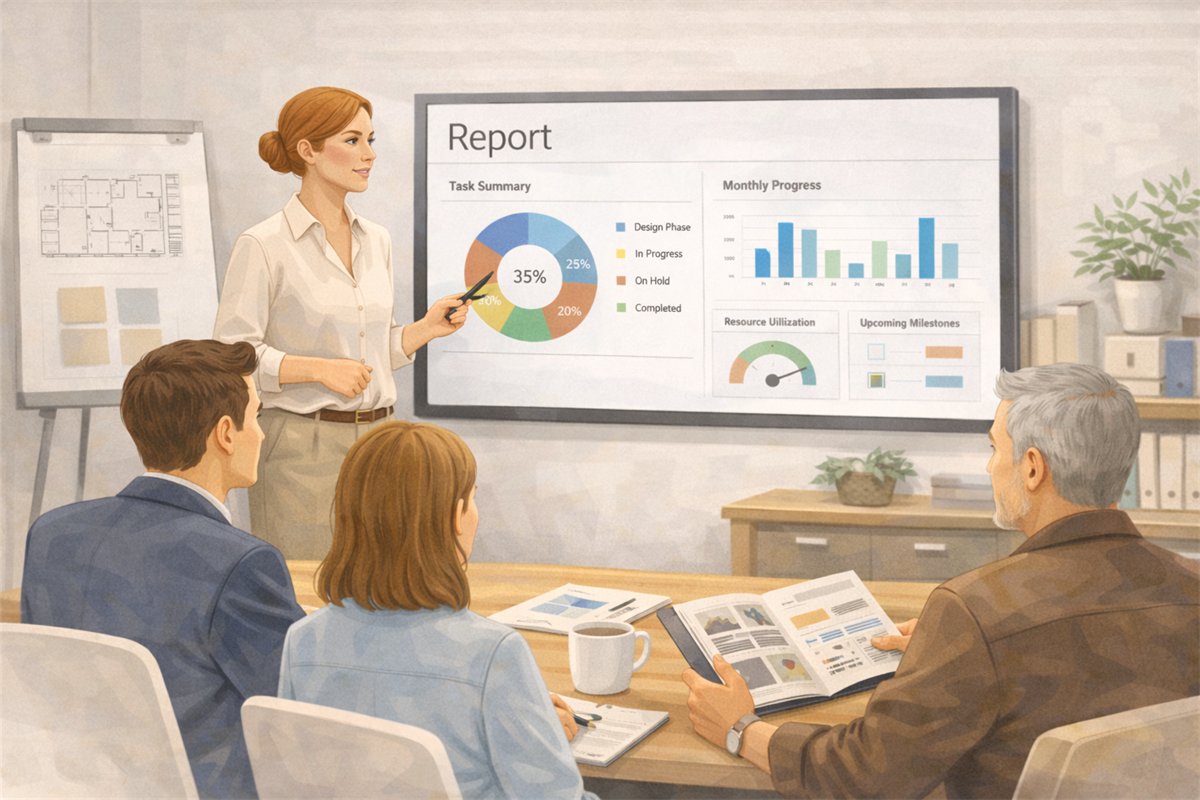
Reporting and Studio Visibility
Track studio operations across projects, scheduling, task load, purchasing, invoicing, accounting, and reporting in one interior design business system.
Explore this feature
Accounting
Manage studio accounting with chart of accounts, taxes, invoicing, payments, and ledger visibility in one connected workflow.
Explore this featureFAQ
Questions studios often ask about this workflow
Clear answers for teams evaluating whether this part of the platform fits their process.
Can calendar events be linked to projects?
Yes. Events can optionally be connected to a specific project so scheduling stays tied to the project context instead of living in a separate tool.
How does the calendar connect to payroll and labor cost?
Events can carry an optional task code, and time entries use the effective hourly payroll rate at the moment they are logged. That snapshotted rate is then used in Time and Cost reporting so historical labor cost remains accurate.
Does the calendar replace the task board?
No. The calendar handles scheduling and time-linked event planning, while the task board manages day-to-day operational tasks that can also stay linked to project, area, or item context.
Can the team filter the calendar by user or project?
Yes. The calendar can be filtered by user or project, which helps teams focus on the work and schedule view most relevant to them.
See it in context
Start free to explore how this feature works inside the full studio platform
Diako Studio is built to help interior design studios connect creative workflow, client approvals, sourcing, proposals, purchase orders, and invoicing in one place.