
vendor portal for interior design suppliers
Vendor Portal for Interior Design Suppliers
Diako Studio includes a separate vendor portal for suppliers, manufacturers, and service providers who need a clean way to join the platform without entering the studio dashboard. Vendors can confirm their email, build a business profile, submit catalog items for review, track purchase orders, and manage promotion campaigns from a self-service application built specifically for the supplier side of the workflow.
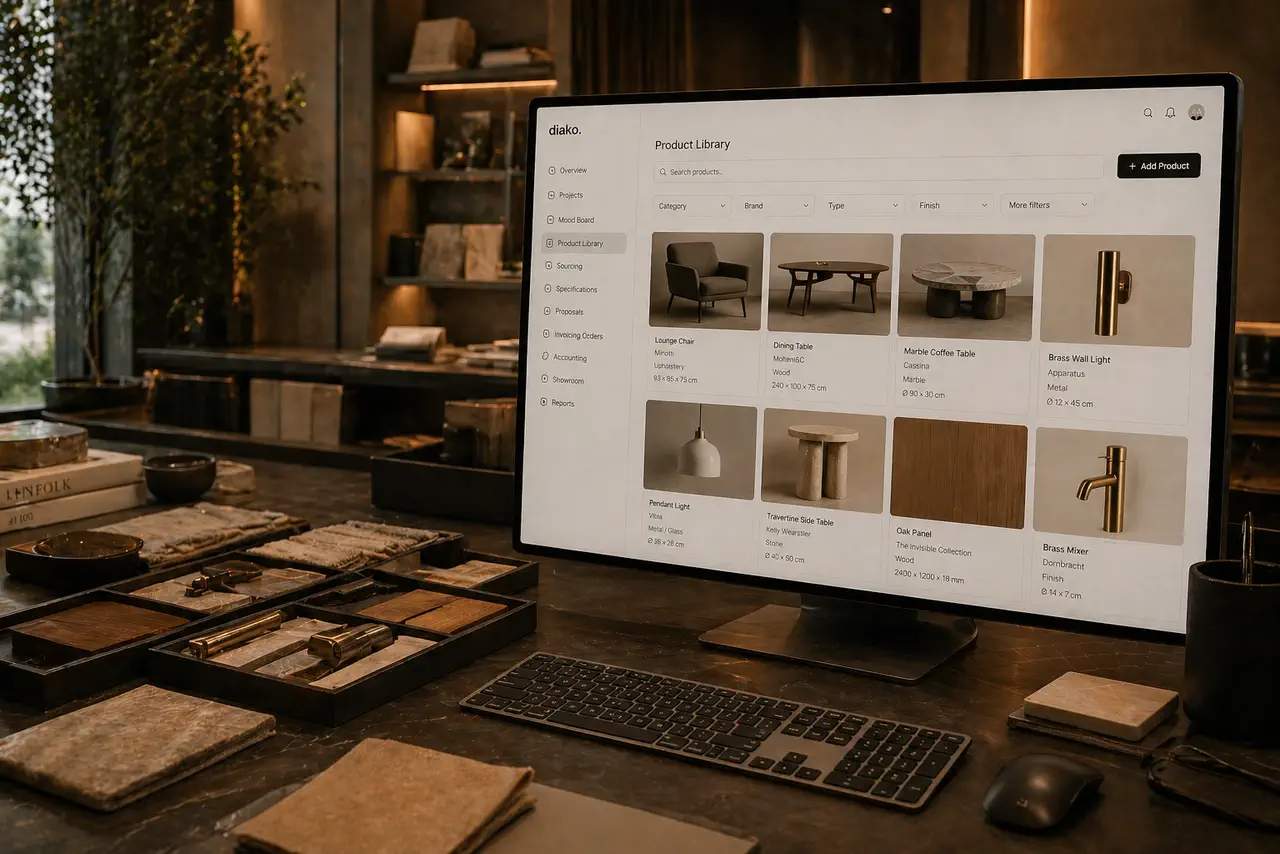
- Separate vendor authGive suppliers their own secure login, separate from studio accounts.
- Review-first catalog flowSuppliers can submit and update products while Diako keeps approval control before records become active.
- Orders and promotionsApproved vendors can view purchase orders, run campaigns, and manage coupon-based offers from one portal.
Vendor Portal for professional studio workflow
- Give vendors their own dedicated login experience, separate from studio and client accounts.
- Let suppliers complete their business profile, upload a logo, and maintain their own record instead of relying on manual admin entry.
- Support catalog submission with pending-review status so product data stays curated before it enters the broader workflow.
- Show vendors the purchase orders sent to them through Diako without exposing any unrelated company data.
- Enable promotion campaigns, one-time Stripe-funded budgets, and connected-studio coupons inside the same supplier-facing portal.
Built to support connected studio handoffs
- Register with email and password, then confirm the account through the time-limited email verification link.
- Complete the vendor business profile with company details, location fields, address, and optional brand logo upload.
- Add catalog items with vendor type, product or category mapping, and optional product photos before submitting the application.
- Submit the application for Diako review and move through the vendor lifecycle from incomplete to pending, active, or rejected.
- After approval, use the same portal to review purchase orders, manage promotion campaigns, fund approved campaign budgets, and create connected-studio coupons.
Supplier-facing workflow
Give vendors a real self-service portal instead of pushing everything through studio admins
The vendor portal keeps supplier onboarding, catalog submission, review, and downstream commercial activity in one controlled workflow that still stays separate from the internal studio dashboard.
Start with a supplier-only signup and email confirmation flow
The first layer of the portal is account setup. Vendors register with email and password, confirm through a time-limited email link, and then access a workspace designed just for suppliers. Keeping that experience separate makes the product clearer and gives vendors a cleaner path into the platform.
- Require email confirmation before full access is allowed.
- Support resend-confirmation without exposing whether an address is registered.
- Keep vendor access separate from the studio and client experience.
Let suppliers complete their business profile and submit a catalog for review
After confirmation, vendors can build out the company profile with contact and location details, upload a logo, and start adding catalog items. Each item can reference standard Diako categories or products, or use custom naming when the supplier needs flexibility. This keeps vendor-submitted data structured without forcing a brittle one-size-fits-all form.
- Collect company details, website, location fields, address, and optional logo uploads.
- Support supplier, material, and labour vendor types on submitted catalog items.
- Require at least one catalog item before the application can move forward.
Review vendor applications and keep accepted catalog data controlled over time
The portal supports a real lifecycle instead of treating supplier setup like a one-click signup. Vendors move from unconfirmed to incomplete, then pending, active, or rejected. That makes it easier for Diako to review the business record and product data before the supplier becomes active, while still letting rejected vendors correct and resubmit.
- Validate the profile and confirm at least one catalog item exists before submission.
- Allow rejected vendors to update and resubmit instead of starting from zero.
- Reset edited accepted catalog items back to pending for re-review while preserving traceability.

Keep purchase-order visibility, campaign budgets, and coupons inside the same vendor portal
Once a vendor is active, the portal continues to be useful. Suppliers can open purchase orders sent from studios, build targeted promotion campaigns, fund approved campaign budgets through Stripe, and create coupons limited to connected studios and selected products. This turns the portal into an ongoing supplier workspace, not just an onboarding form.
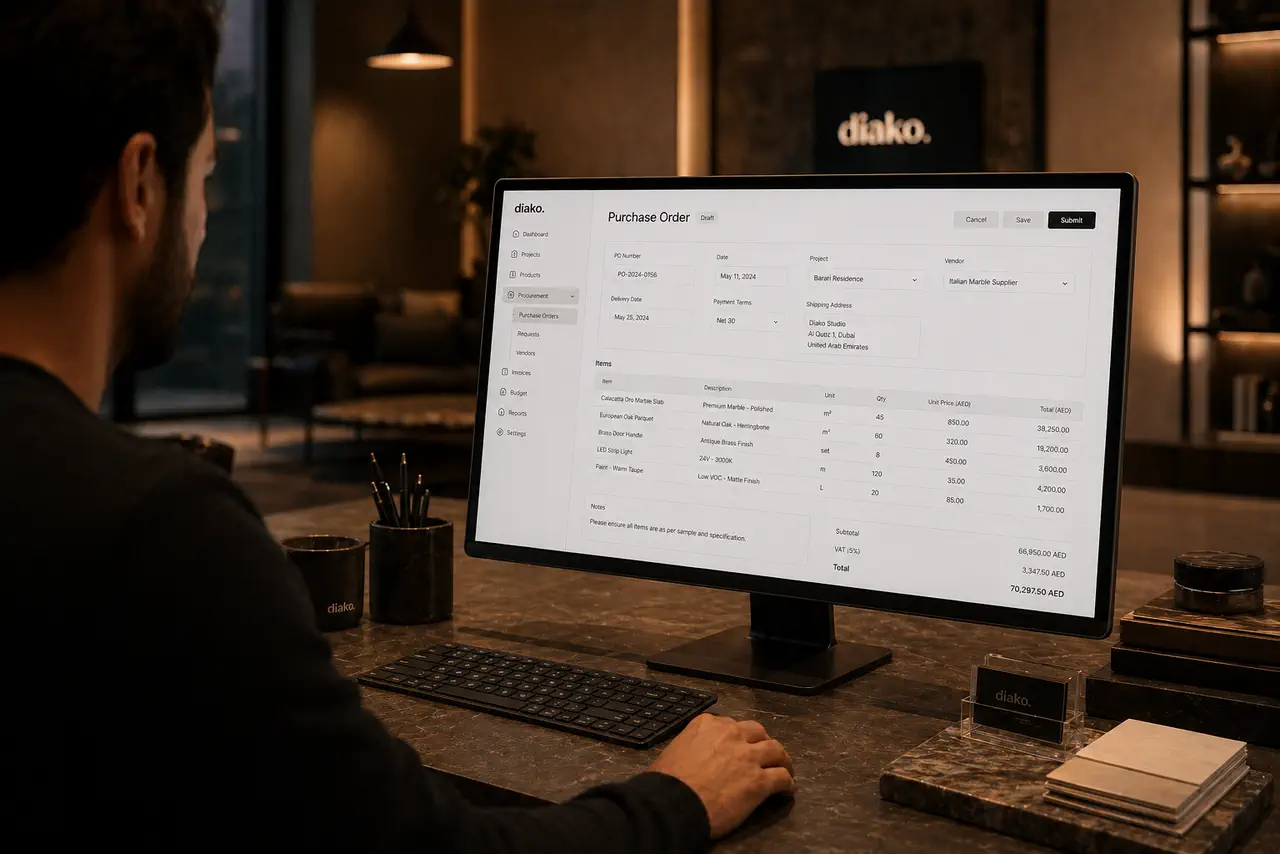
- Show vendor-visible purchase orders with search, pagination, and clear studio context.
- Create location-based promotion campaigns with review and one-time Stripe payment for approved budgets.
- Offer coupon controls that can be restricted to connected studios and chosen catalog items.

Reduce friction inside the studio workflow
- Suppliers relying on email threads and manual admin back-and-forth just to get their company and product data into the system.
- No clean approval workflow when vendors need to submit or update catalog records that should be reviewed first.
- Purchase-order visibility being fragmented across inboxes instead of one supplier-facing portal.
- Promotion opportunities requiring custom outreach instead of a structured campaign workflow with stored budgets and location targeting.
- Security risk when vendor access is mixed into the same authentication flow used by studios or clients.
Works better because it connects to the surrounding workflow
Related features
Explore the connected modules around this workflow
Each part of the platform is stronger because it links to the stages before and after it.

Vendor Management
Manage supplier records, default markups, product-linked vendors, AI vendor search, and faster vendor lookup in one studio workflow.
Explore this featureProduct Library
Keep products, finishes, suppliers, and pricing in a reusable library the team can carry into specs and sourcing.
Explore this feature
Purchase Orders
Generate purchase orders from approved vendor cost rows with project context, vendor detail, payment status tracking, and a cleaner procurement handoff.
Explore this featureProduct Sourcing
Manage sourcing with organized vendor records, approved selections, and a cleaner handoff into ordering.
Explore this featureFAQ
Questions studios often ask about this workflow
Clear answers for teams evaluating whether this part of the platform fits their process.
Is the vendor portal separate from the studio dashboard?
Yes. The vendor portal is a separate supplier-facing experience, so vendors use their own login and workspace instead of entering the studio or client side of the platform.
What has to happen before a vendor can log in fully?
The vendor must confirm the registration email first. After that, they can complete the company profile, add catalog items, and submit the application for review.
Can vendors submit their own catalog items?
Yes. Vendors can add catalog entries, choose a vendor type, map to standard Diako categories or products when relevant, attach optional photos, and submit the records for review.
What happens when an approved vendor edits an accepted catalog item?
The item returns to pending status for re-review. Accepted items are kept traceable and can be deactivated instead of being hard-deleted.
Can vendors manage promotions and discounts from the portal?
Yes. Approved vendors can create promotion campaigns with location targeting, fund approved campaign budgets through Stripe, and create coupons for connected studios and eligible products.
See it in context
Start free to explore how this feature works inside the full studio platform
Diako Studio is built to help interior design studios connect creative workflow, client approvals, sourcing, proposals, purchase orders, and invoicing in one place.